> ## Documentation Index
> Fetch the complete documentation index at: https://docs.commerce.thecanbrand.com/llms.txt
> Use this file to discover all available pages before exploring further.
# Delivery assignment
The **Deliver Assignment** module allows assigning drivers to **loaded delivery orders** and tracking the assignment status.
***
## List Screen
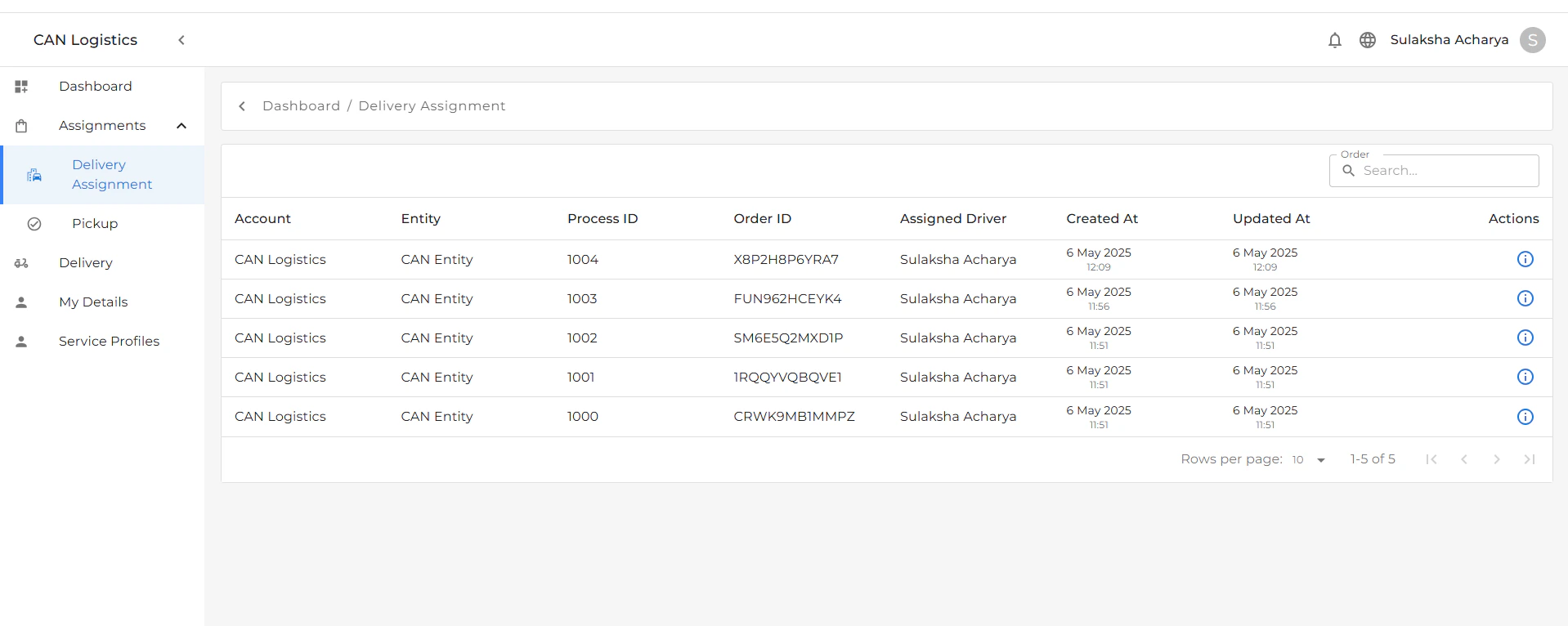
The Deliver Assignment list screen displays detailed information for each assignment:
* **Account**: The account associated with the delivery.
* **Entity**: The managing entity or organization.
* **Process**: The delivery process stage.
* **Order ID**: Unique identifier for the delivery order.
* **Assigned Driver**: The driver assigned to the order.
* **Created Date**: Date and time the assignment was created.
* **Updated Time**: Last updated timestamp for the assignment.
***
 ## Actions
Each record includes an **Actions** button that lets you:
* View assignment **Details**.
* Track delivery status and schedule.
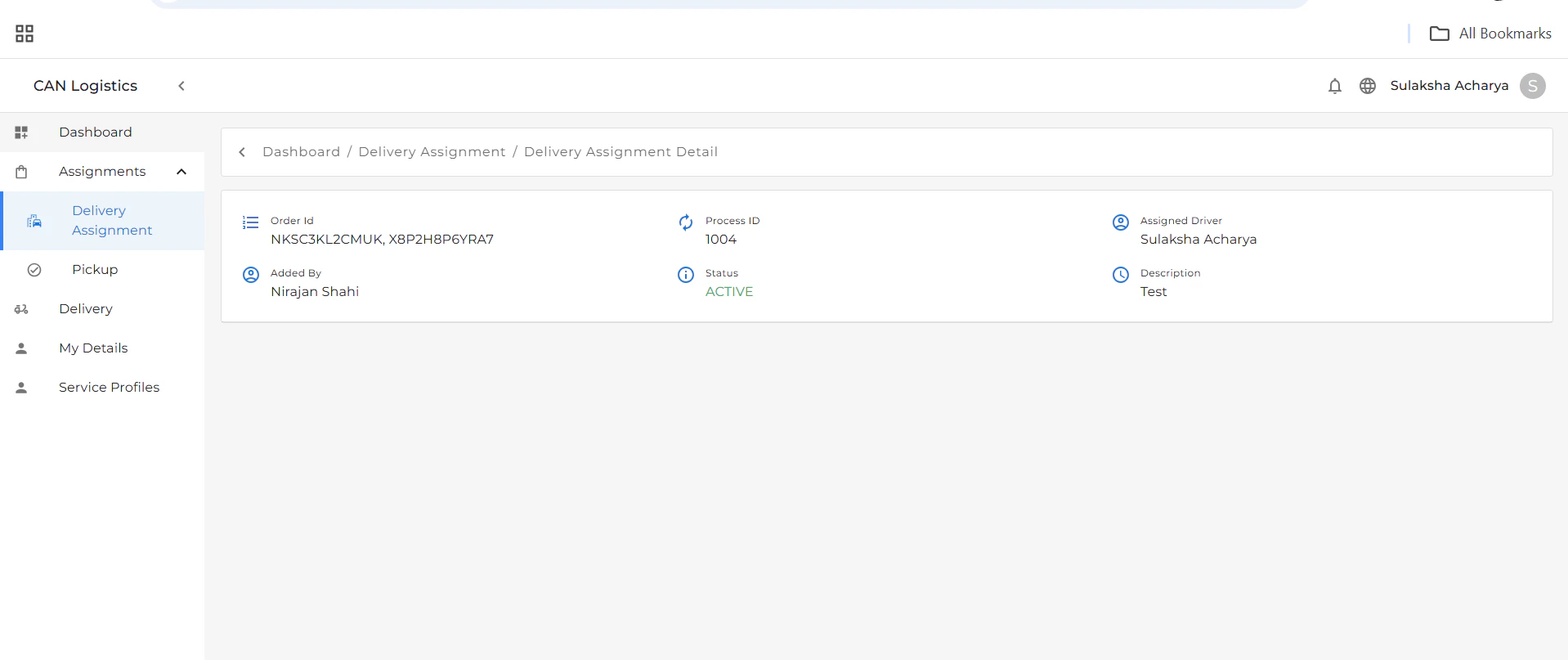
The **Details** view includes:
* **Order ID**
* **Assigned Driver**
* **Pickup and Delivery Schedule**
* **Process Id**
* \*\*Added By \*\*
## Actions
Each record includes an **Actions** button that lets you:
* View assignment **Details**.
* Track delivery status and schedule.
The **Details** view includes:
* **Order ID**
* **Assigned Driver**
* **Pickup and Delivery Schedule**
* **Process Id**
* \*\*Added By \*\*
 ***
## Workflow
1. Load the delivery order.
2. Open the **Deliver Assignment** module.
3. Select a driver from the list.
4. Assign the driver to the loaded order.
5. Track the progress via the list and detail screens.
***
***
## Workflow
1. Load the delivery order.
2. Open the **Deliver Assignment** module.
3. Select a driver from the list.
4. Assign the driver to the loaded order.
5. Track the progress via the list and detail screens.
***