> ## Documentation Index
> Fetch the complete documentation index at: https://docs.commerce.thecanbrand.com/llms.txt
> Use this file to discover all available pages before exploring further.
# Order
# Order Creation Flow
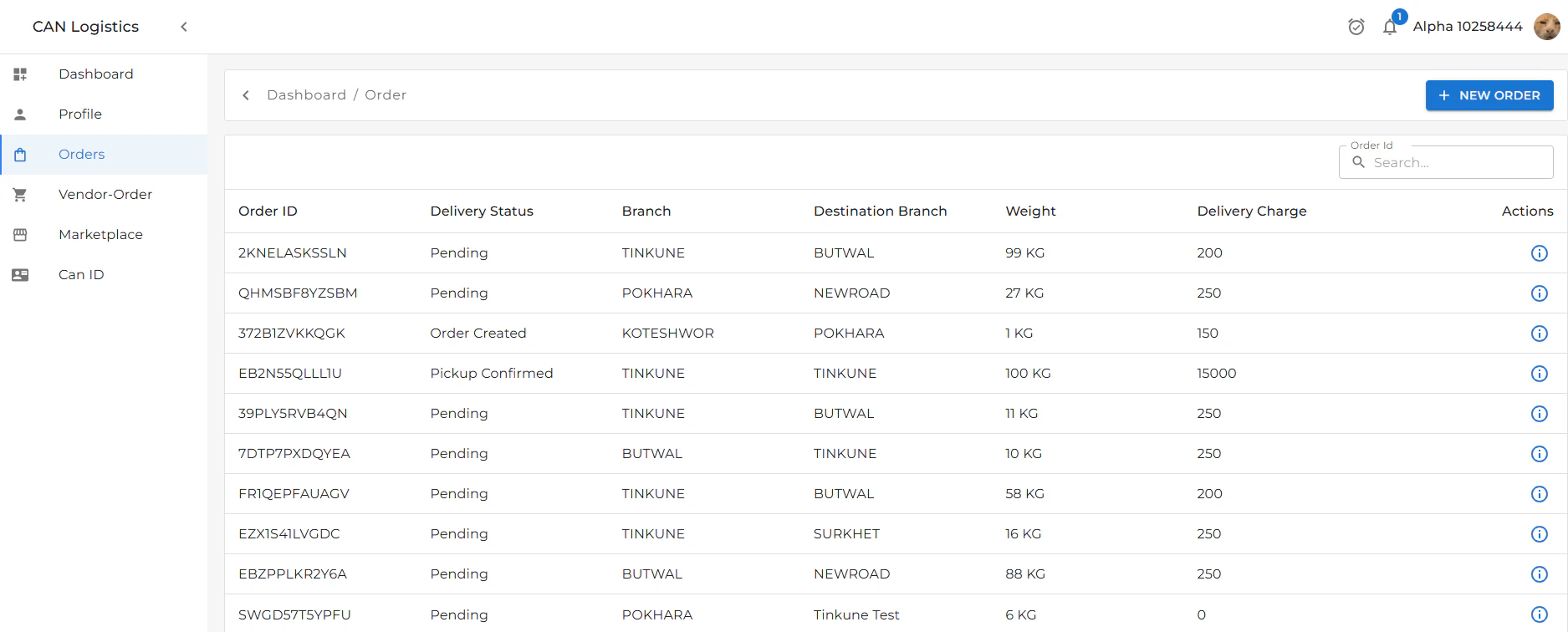
# Order List
* Displays all orders that:
* You have created, or
* Have been created for you by the admin.
* Allows easy tracking and management of existing orders.
 Follow these steps to create a new order.
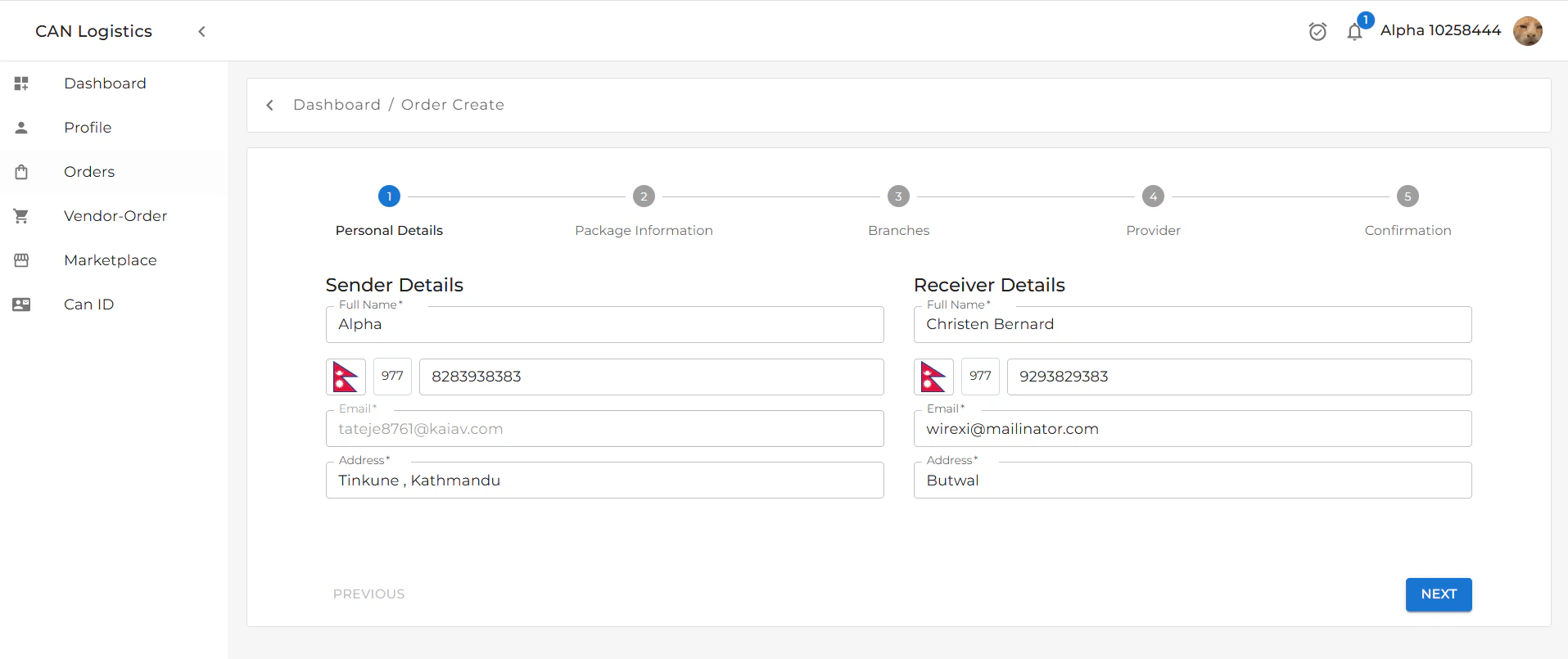
## 1. Sender & Receiver Details
* Fill in personal details for both the **sender** and **receiver**.
* Includes:
* Name
* Phone
* Address
* Click **Next** to proceed.
Follow these steps to create a new order.
## 1. Sender & Receiver Details
* Fill in personal details for both the **sender** and **receiver**.
* Includes:
* Name
* Phone
* Address
* Click **Next** to proceed.
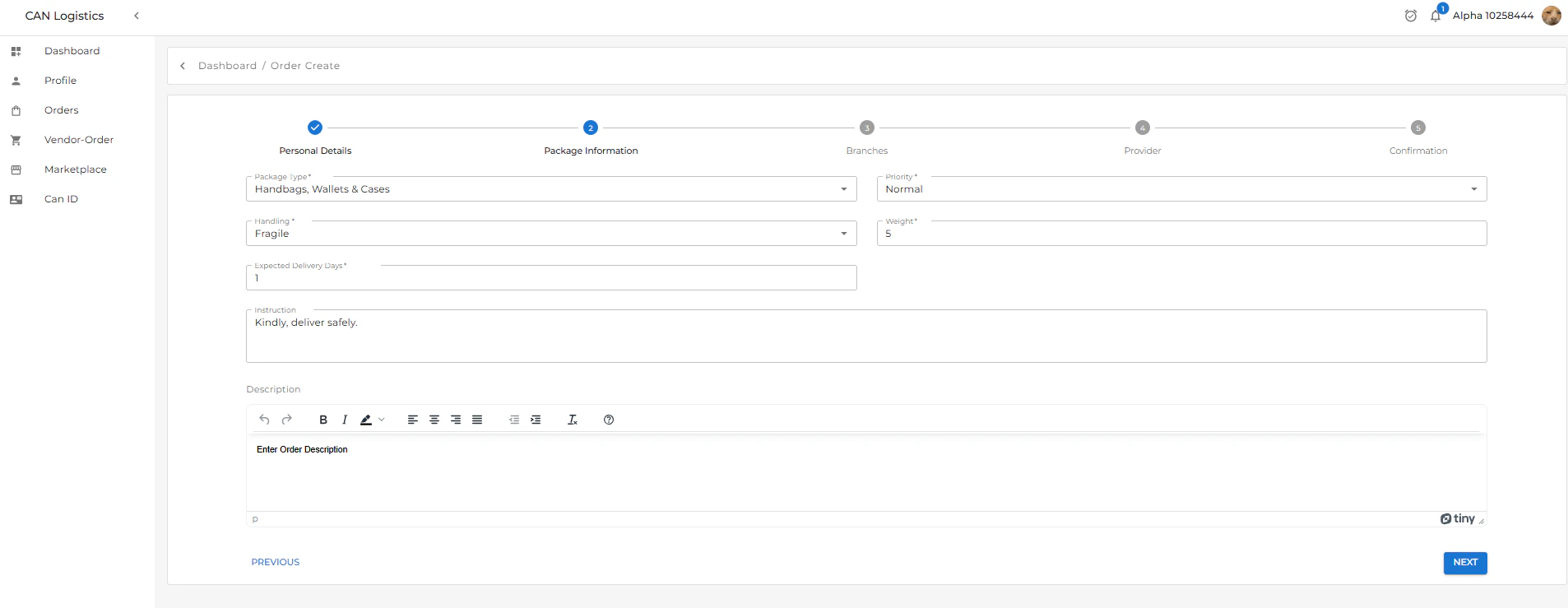
 ## 2. Package Details
* Enter all relevant package information:
* Type
* Weight
* Dimensions
* Contents
* Click **Next** to proceed.
## 2. Package Details
* Enter all relevant package information:
* Type
* Weight
* Dimensions
* Contents
* Click **Next** to proceed.
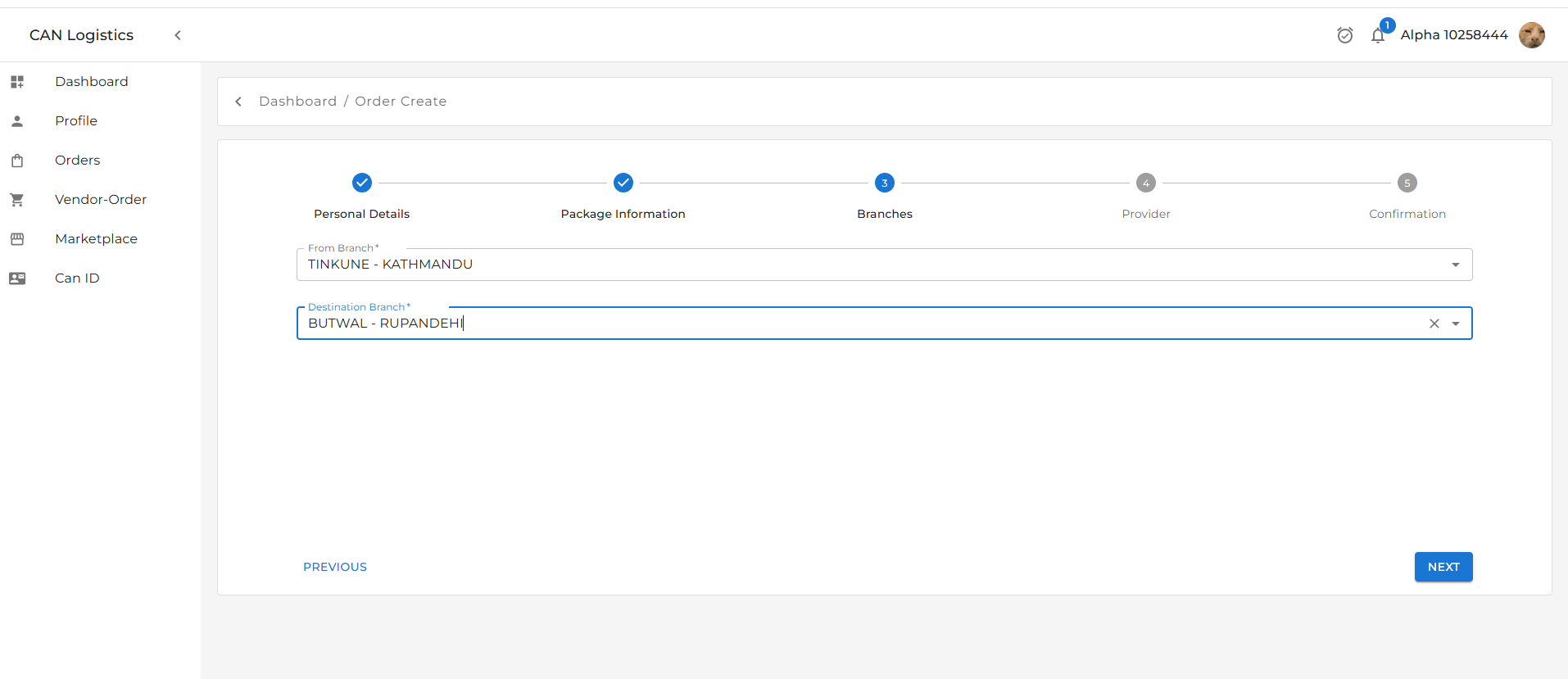
 ## 3. Branch Selection
* Choose the **sending branch** (from) and the **destination branch**.
* These define the route of the order.
* Click **Next** to continue.
## 3. Branch Selection
* Choose the **sending branch** (from) and the **destination branch**.
* These define the route of the order.
* Click **Next** to continue.
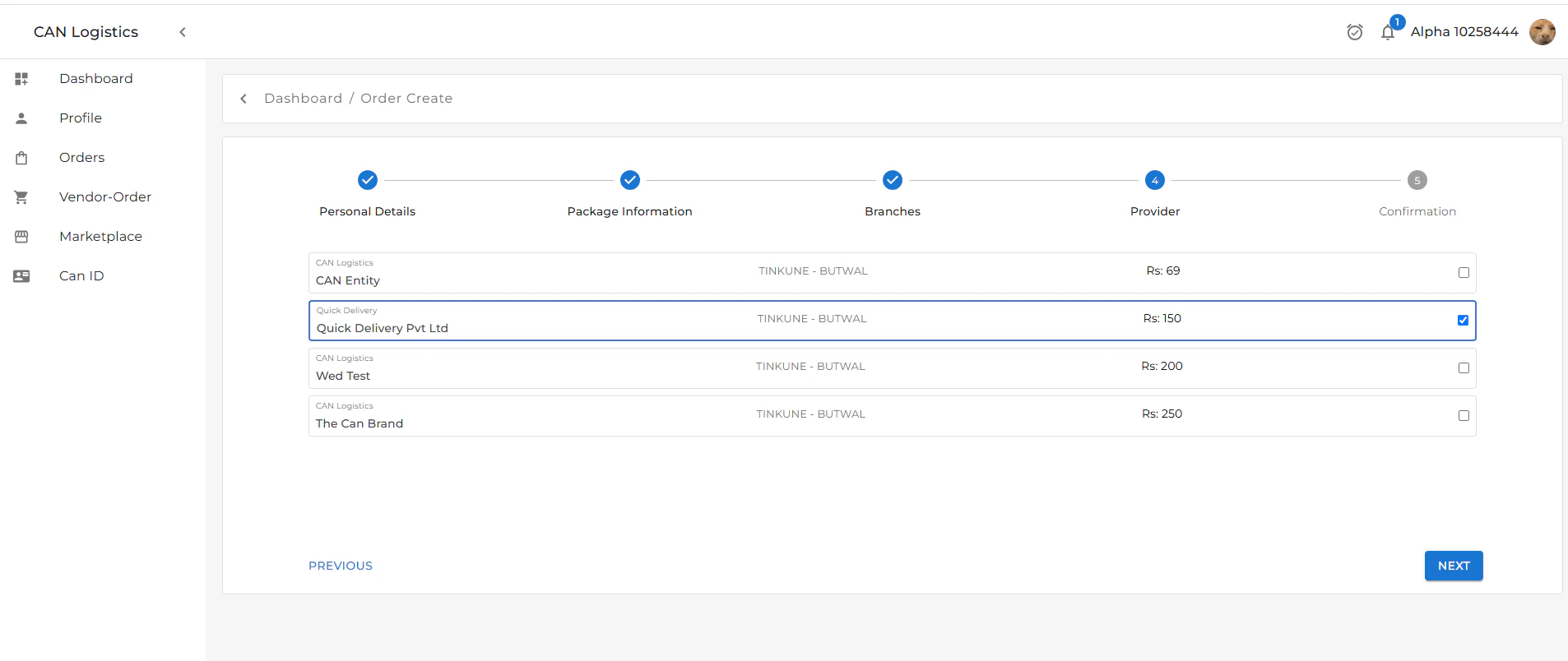
 ## 4. Provider Selection
* Select the **logistics provider**.
* This could be based on:
* Price
* Delivery time
* Availability
* Click **Next** to proceed.
## 4. Provider Selection
* Select the **logistics provider**.
* This could be based on:
* Price
* Delivery time
* Availability
* Click **Next** to proceed.
 ## 5. Order Confirmation
* Review all entered information:
* Sender & Receiver Info
* Package Details
* Branch Route
* Provider Info
* Ensure all details are correct.
* Click **Submit** to finalize.
## 5. Order Confirmation
* Review all entered information:
* Sender & Receiver Info
* Package Details
* Branch Route
* Provider Info
* Ensure all details are correct.
* Click **Submit** to finalize.
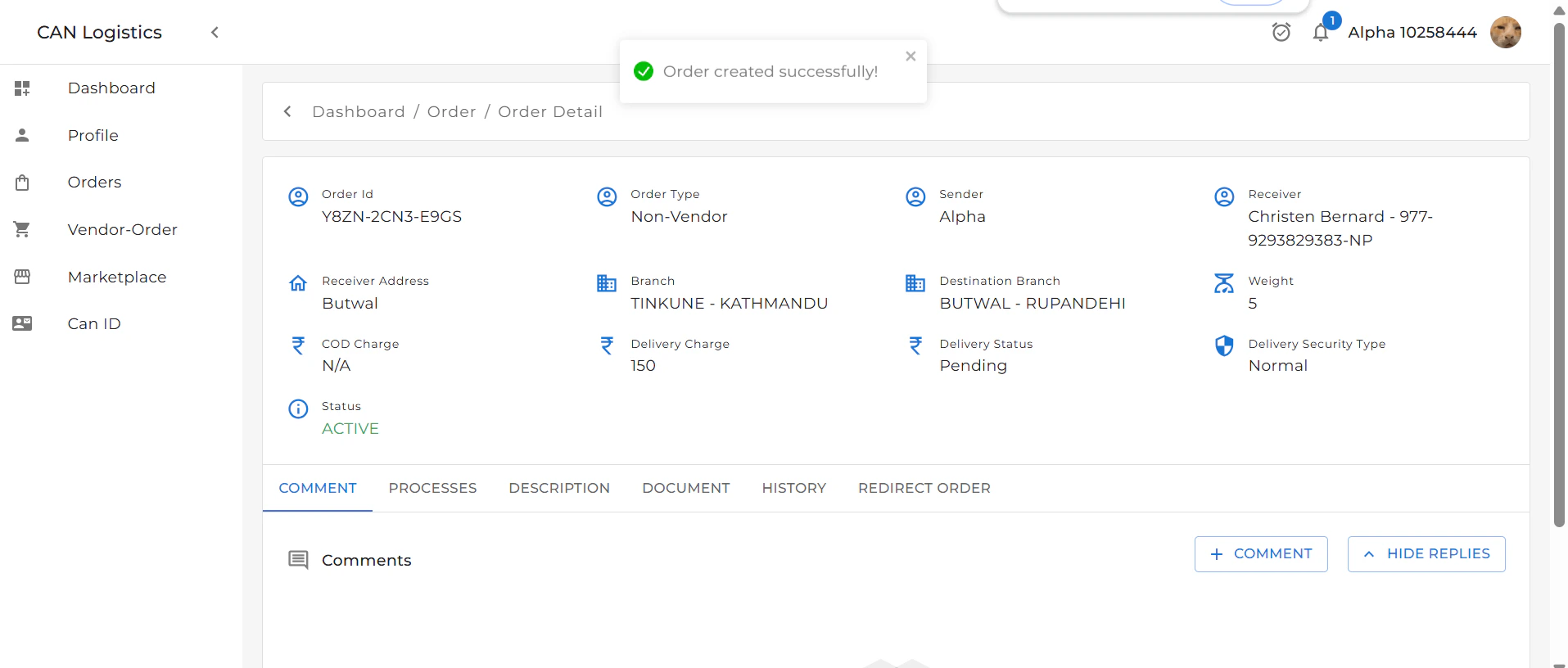
 ✅ The order is now successfully created!
***
✅ The order is now successfully created!
***
 # After Order Creation – Detail Sections
Once the order is submitted, you can view and interact with the following sections:
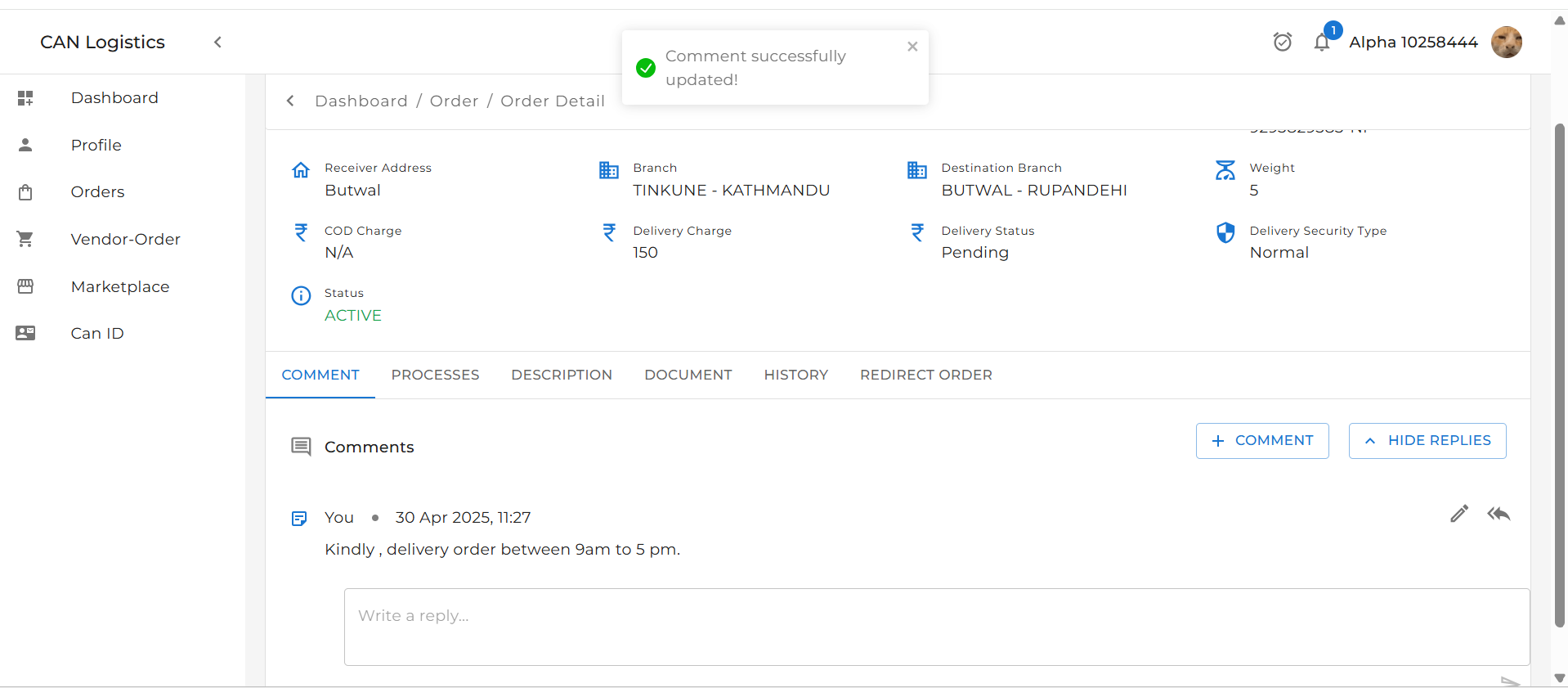
## 1. Comment Section
* **Add a Comment**: Submit internal notes or updates about the order.
* **Edit Comment**: Modify previously added comments by clicking the **Edit** button.
* **Reply to Comment**: Use the **Reply** button to respond to a comment.
* **Hide Replies**: Collapse all replies under a comment using the **Hide Replies** option.
***
# After Order Creation – Detail Sections
Once the order is submitted, you can view and interact with the following sections:
## 1. Comment Section
* **Add a Comment**: Submit internal notes or updates about the order.
* **Edit Comment**: Modify previously added comments by clicking the **Edit** button.
* **Reply to Comment**: Use the **Reply** button to respond to a comment.
* **Hide Replies**: Collapse all replies under a comment using the **Hide Replies** option.
***