> ## Documentation Index
> Fetch the complete documentation index at: https://docs.commerce.thecanbrand.com/llms.txt
> Use this file to discover all available pages before exploring further.
# Register for a New Account (Vendor Portal)
To access the Vendor Portal, you first need to register and create an account. Follow the steps below to complete your registration process.
***
## Registration Form
Fill out the registration form with the following details:
* **Name**
* **Email**
* **Phone Number**
* **Account**
* **Entity**
* **Password**
After completing the form, click the **Register** button.
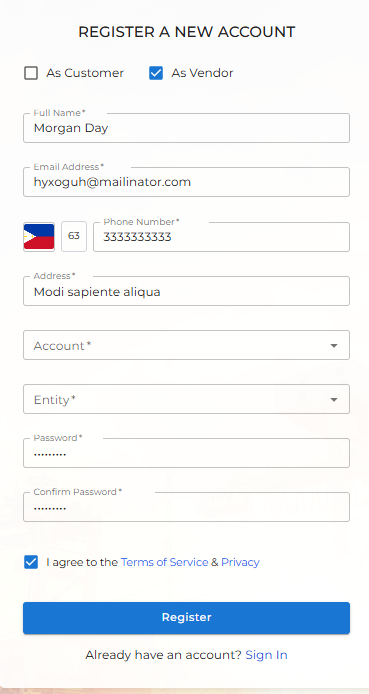 > If you already have an account, you can click the **Sign In** button below the form to log into your account.
***
## Email Verification
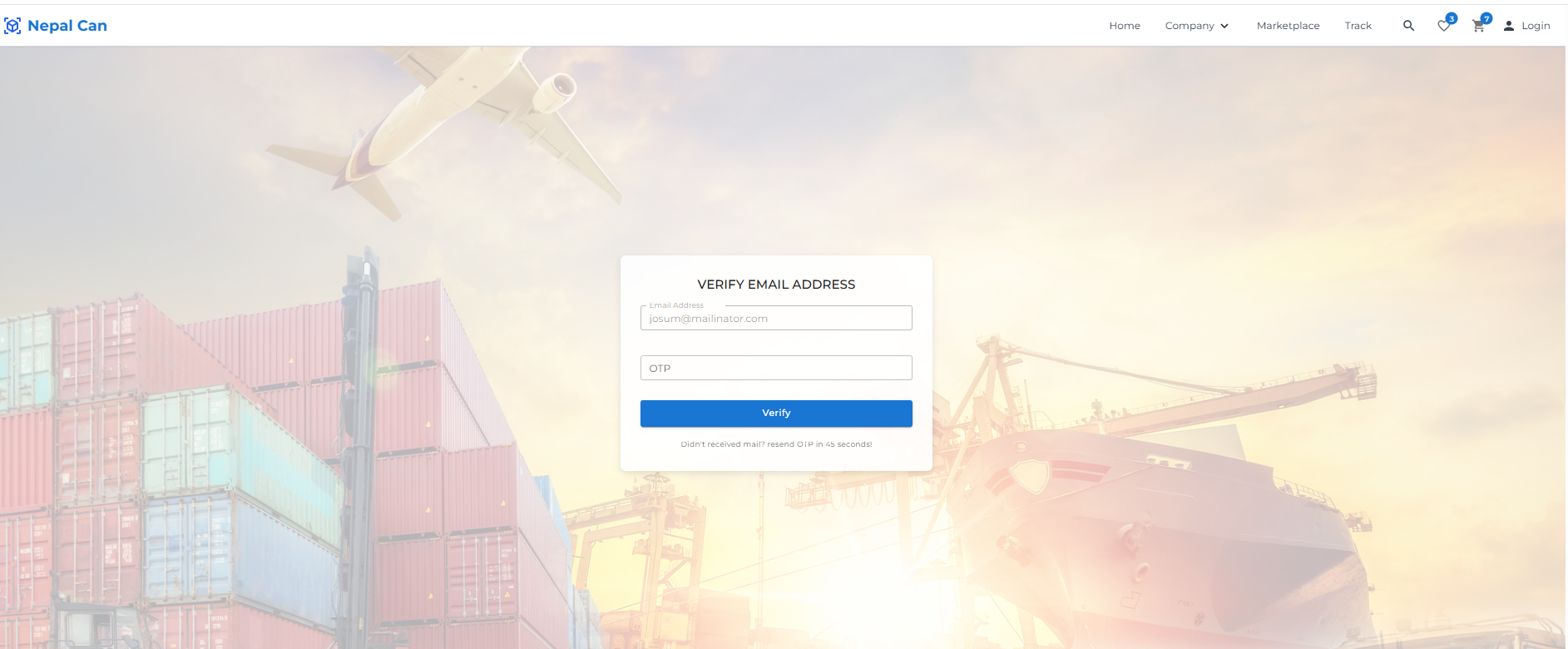
After you click **Register**, you will be navigated to an email verification page.
1. An **OTP (One-Time Password)** will be sent to your registered email address.
2. Enter the OTP into the input field to verify your email address.
3. If you didn’t receive the OTP, click the **Resend OTP** button to request a new one.
***
> If you already have an account, you can click the **Sign In** button below the form to log into your account.
***
## Email Verification
After you click **Register**, you will be navigated to an email verification page.
1. An **OTP (One-Time Password)** will be sent to your registered email address.
2. Enter the OTP into the input field to verify your email address.
3. If you didn’t receive the OTP, click the **Resend OTP** button to request a new one.
***
 ## Successful Registration
Once you enter the correct OTP, your account will be successfully created and you will be redirected to your **Vendor Profile Dashboard**.
Welcome to \**Can Logistic*!
## Successful Registration
Once you enter the correct OTP, your account will be successfully created and you will be redirected to your **Vendor Profile Dashboard**.
Welcome to \**Can Logistic*!