> ## Documentation Index
> Fetch the complete documentation index at: https://docs.commerce.thecanbrand.com/llms.txt
> Use this file to discover all available pages before exploring further.
# E-Commerce
## Domain
* Connect or purchase a custom domain for your store.
* **Example:** `www.vendor.com`
## Website
Create an attractive e-commerce website.\
Customize layout, banners, and content to reflect your brand's identity.
***
## Store Detail
### Website Appearance
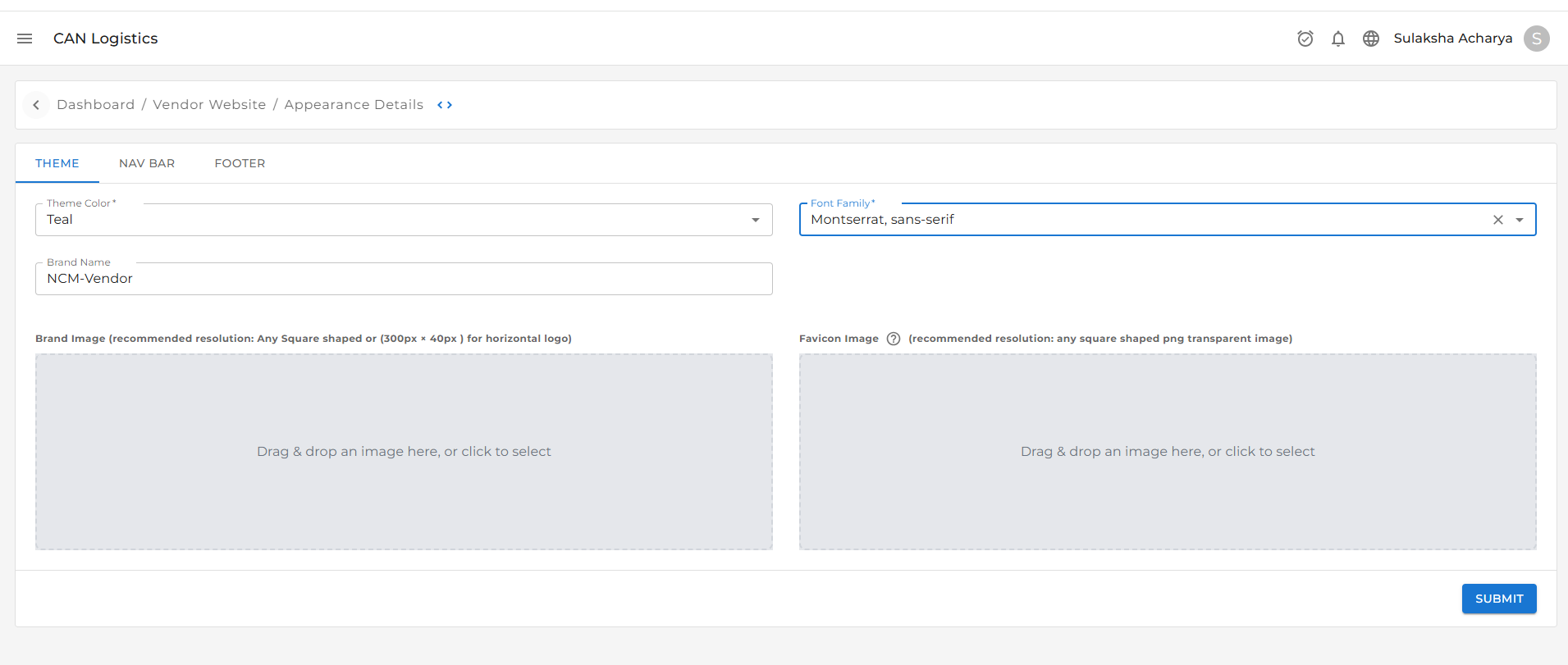
The Theme Navbar section allows you to customize the **visual identity** of your website. You can update the following:
* **Theme Color**\
Change the primary color scheme of your website to match your brand’s personality and style.
* **Font Text**\
Choose the typography for your website.\
Customize the font style, size, and weight for a consistent look and feel.
* **Brand Name**\
Set or update the name of your business or store.\
This will appear in the header and other branded sections across the website.
* **Brand Image**\
Upload your brand logo.\
The logo will be displayed in prominent areas like the website header and footer.\
Click the image section to upload or change the logo anytime.
* **Favicon Image**\
The favicon is a small icon that appears in the browser tab, bookmarks, and browser address bar.\
It visually represents your brand when users open your website.
{" "}
{" "}
{" "}
{" "}
The favicon is a small icon that appears in the browser tab, bookmarks, and
browser address bar.
 ***
***