> ## Documentation Index
> Fetch the complete documentation index at: https://docs.commerce.thecanbrand.com/llms.txt
> Use this file to discover all available pages before exploring further.
# Product
> Guide to adding and managing products with variants
# Product
## Adding a New Product
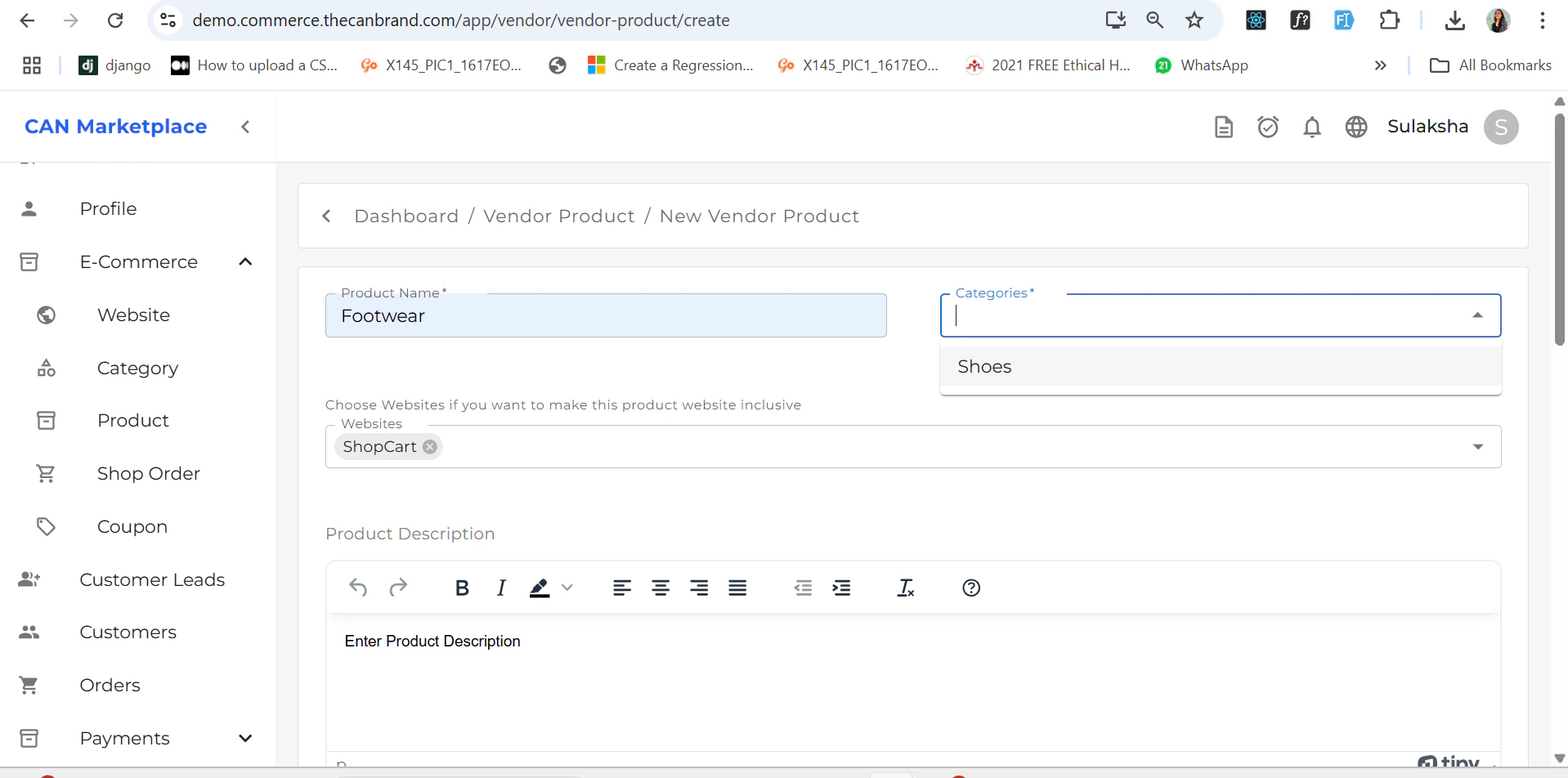
To add a new product:
1. Go to the **Products** section.
2. Click on the **"Add Product"** button located at the **top-right corner** of the screen.
 ## Adding Variants
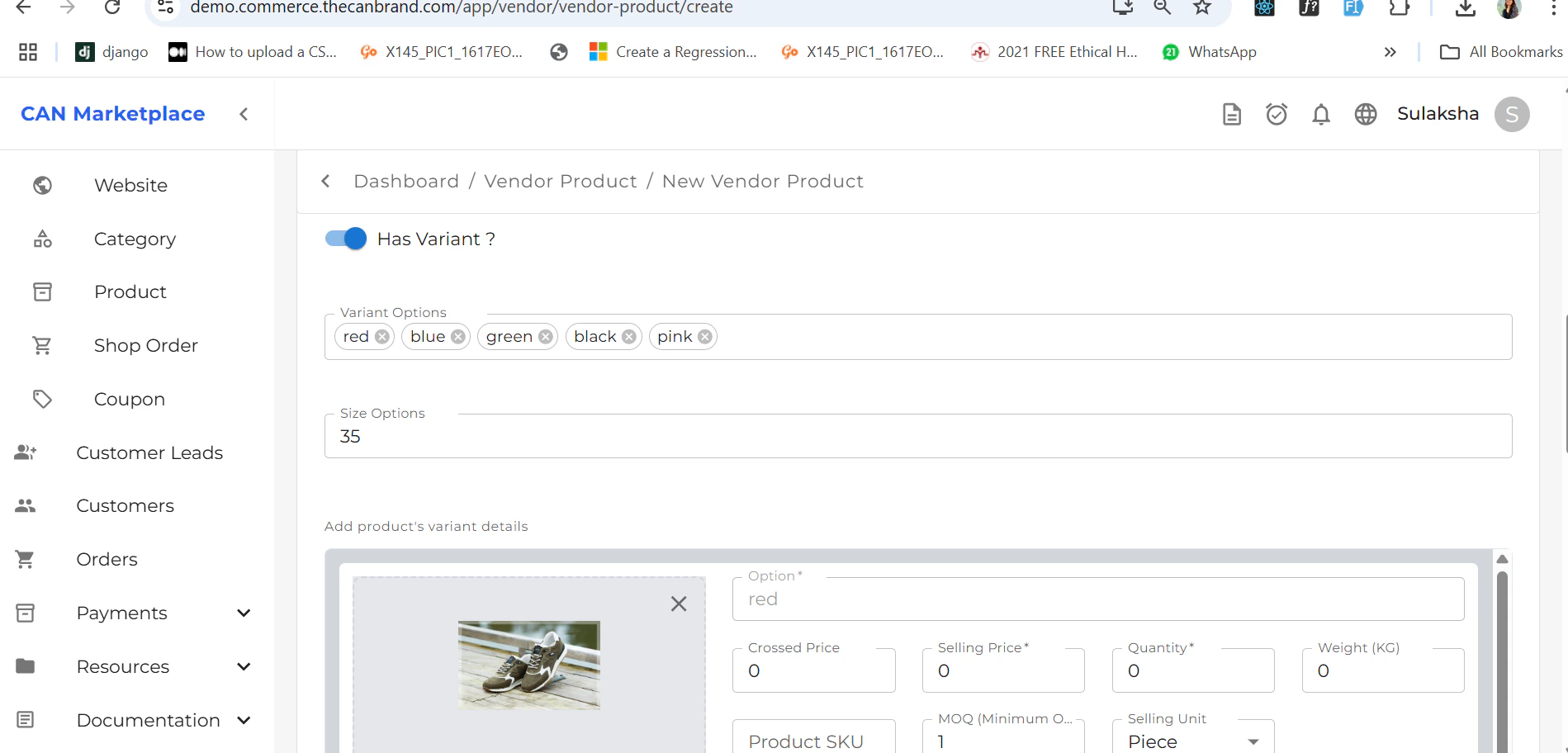
You can add product variants (like color or size) by scrolling down to the **Variants** section in the product form.
### How to Add a Variant:
* Choose the variant type (e.g., **Color**).
* Enter each variant option by typing and then pressing the **Enter** key.
* For example:\
Type `Red` → Press `Enter`\
Type `Blue` → Press `Enter`\
Type `Black` → Press `Enter`
> ⚠️ Note: You **must press Enter** after typing each variant option to register it correctly.
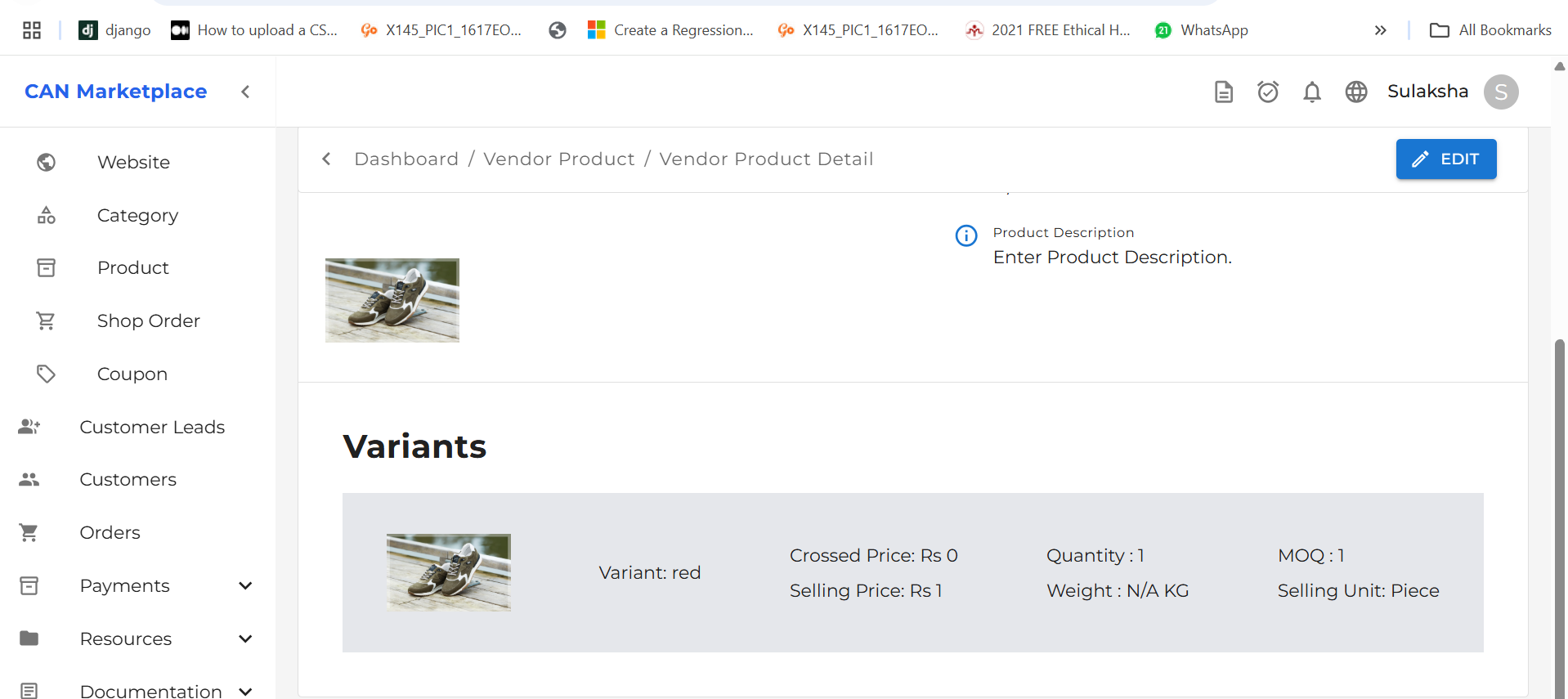
Once variants are added, they will be displayed within the product details.
## Adding Variants
You can add product variants (like color or size) by scrolling down to the **Variants** section in the product form.
### How to Add a Variant:
* Choose the variant type (e.g., **Color**).
* Enter each variant option by typing and then pressing the **Enter** key.
* For example:\
Type `Red` → Press `Enter`\
Type `Blue` → Press `Enter`\
Type `Black` → Press `Enter`
> ⚠️ Note: You **must press Enter** after typing each variant option to register it correctly.
Once variants are added, they will be displayed within the product details.
 ## Product List
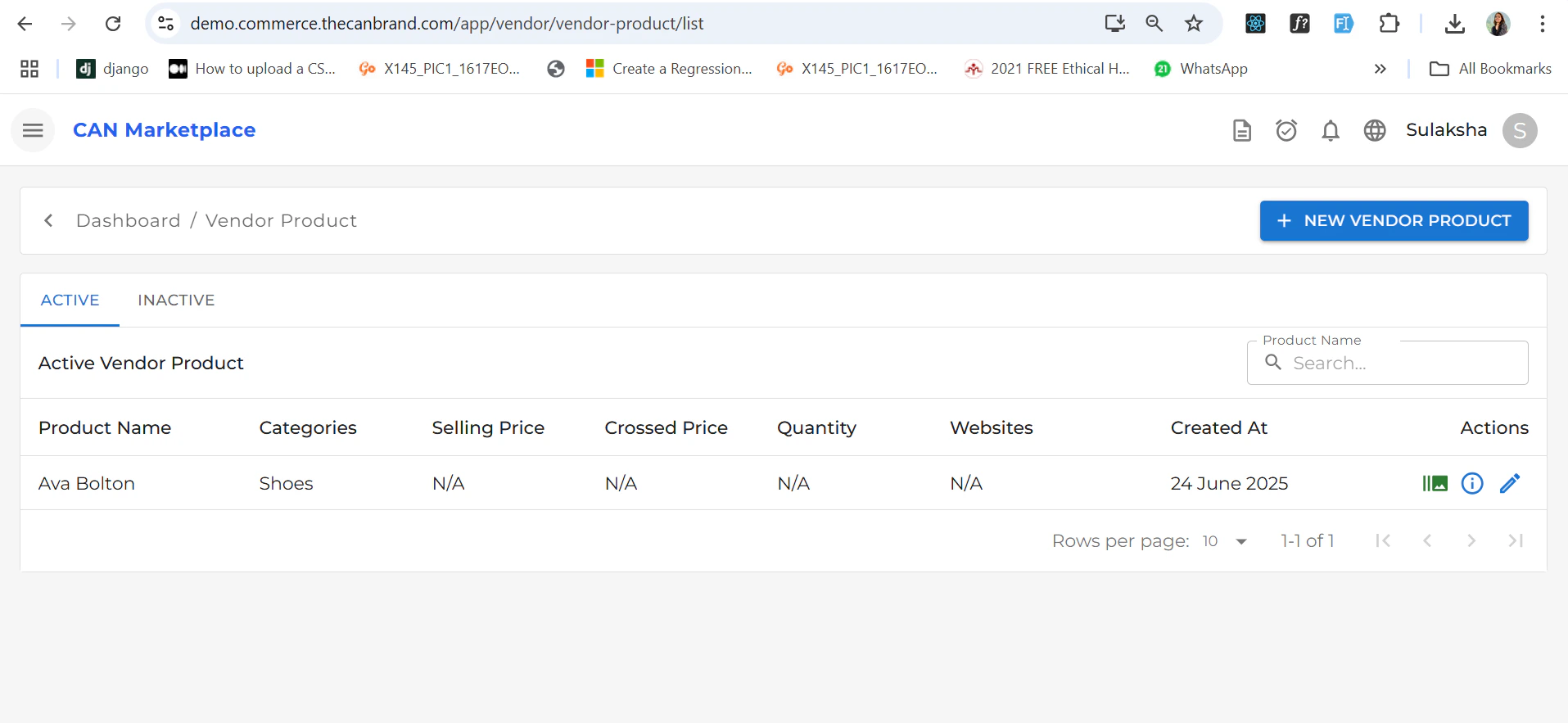
After saving the product, it will appear in the **Product List** screen, where you can view, edit, or manage it further.
## Product List
After saving the product, it will appear in the **Product List** screen, where you can view, edit, or manage it further.
 # Product Detail
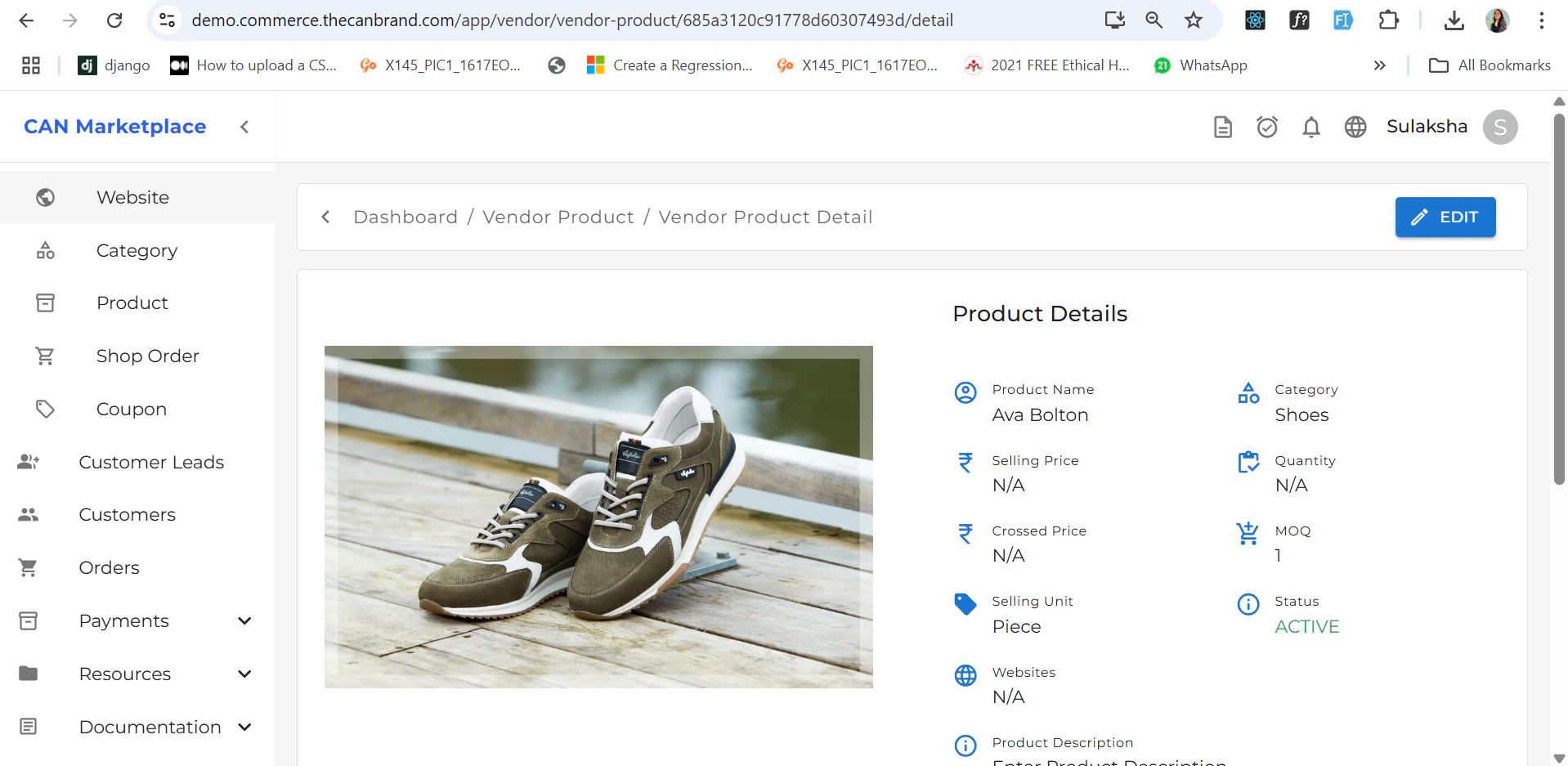
The **Product Detail** page allows you to view complete information about a specific product with variant if you have added.
# Product Detail
The **Product Detail** page allows you to view complete information about a specific product with variant if you have added.