> ## Documentation Index
> Fetch the complete documentation index at: https://docs.commerce.thecanbrand.com/llms.txt
> Use this file to discover all available pages before exploring further.
# Shop order
## Create a Shop Order
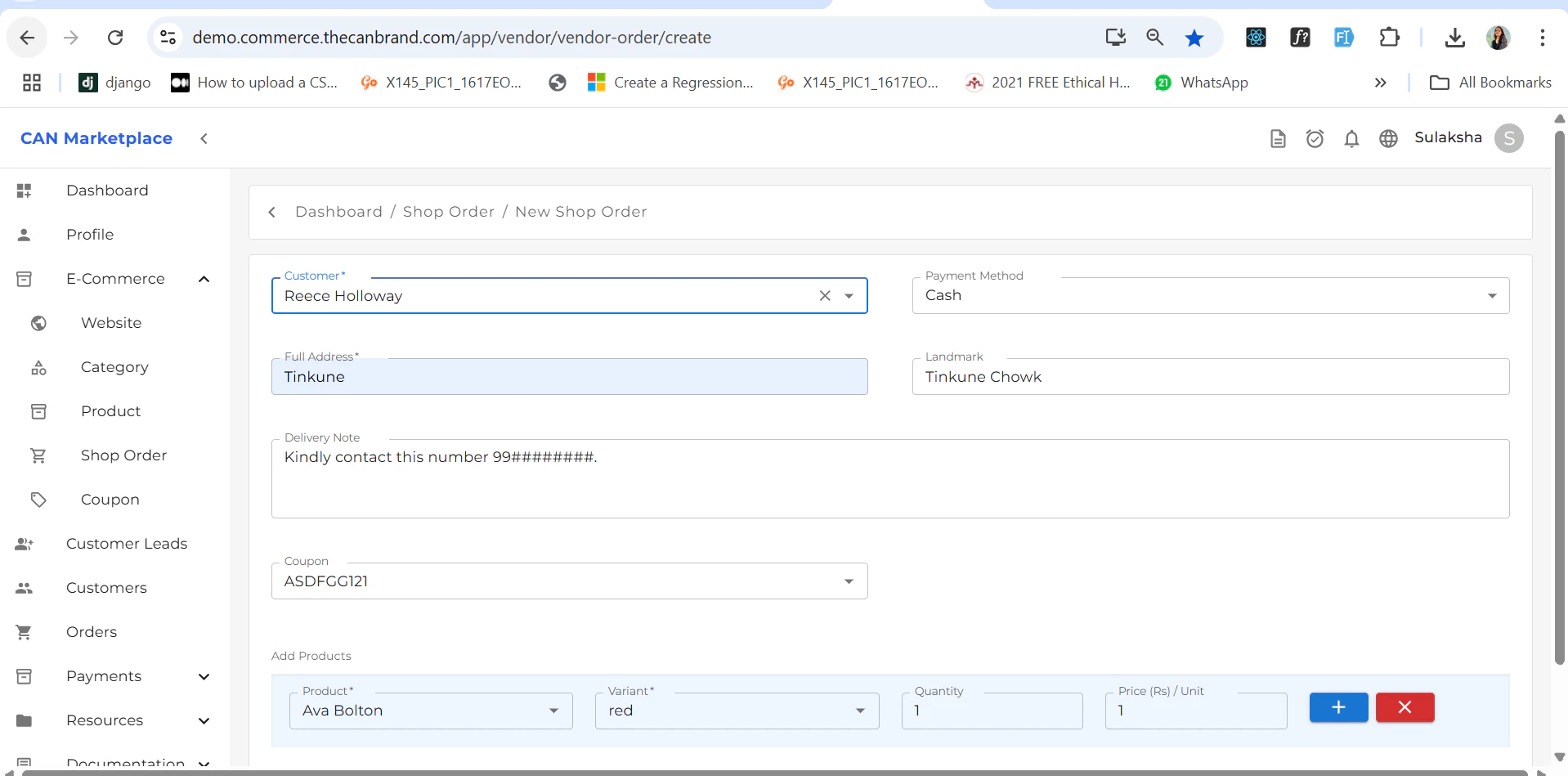
You can create a **Shop Order** by selecting a particular **customer**. Once the customer is selected and the order is submitted, it will be created successfully.
 ## Order Listing
Once a shop order is added, it will appear in the **Shop Order List Screen** where you can view all created orders.
## Order Listing
Once a shop order is added, it will appear in the **Shop Order List Screen** where you can view all created orders.
 ## Order Details
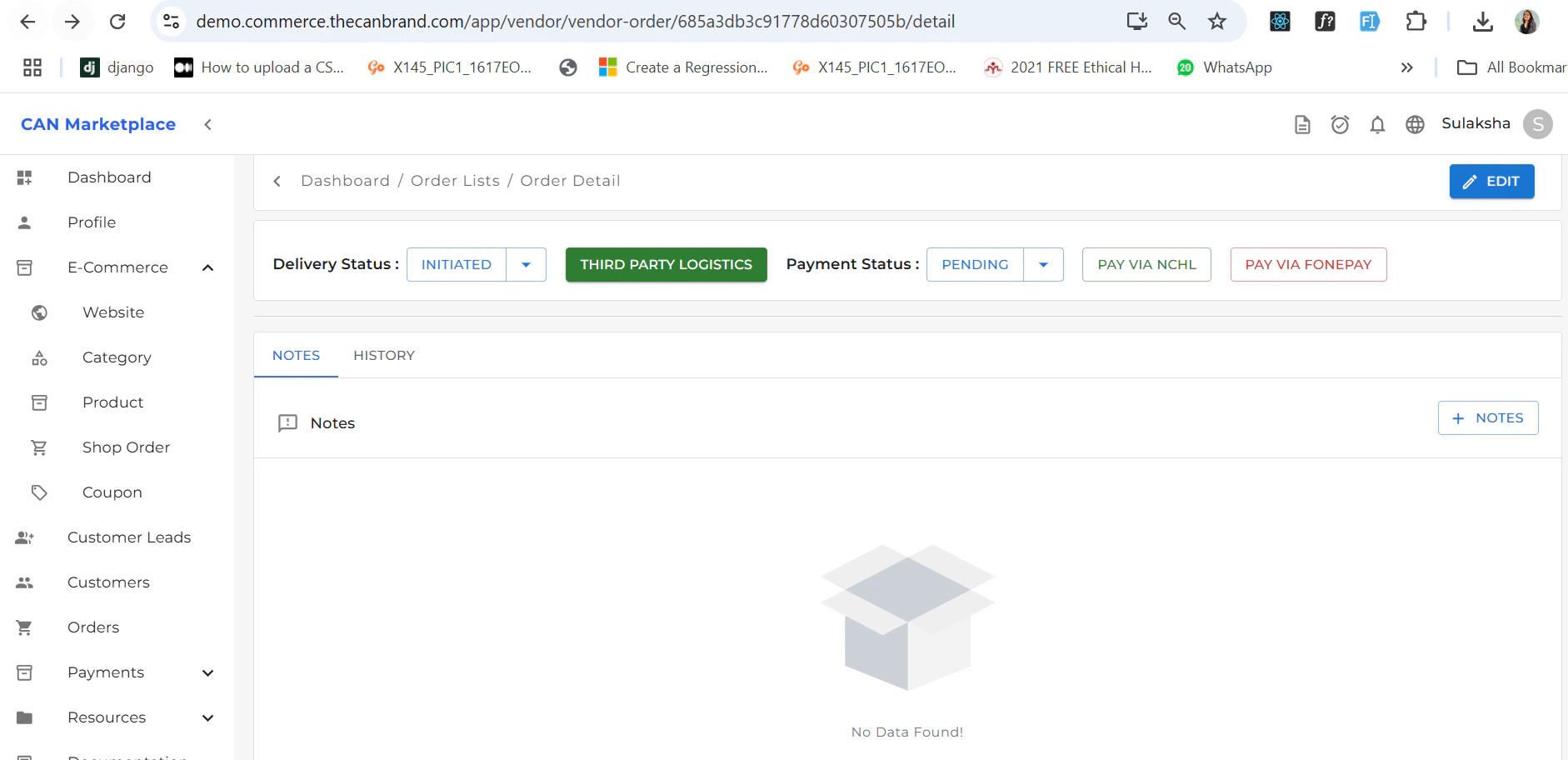
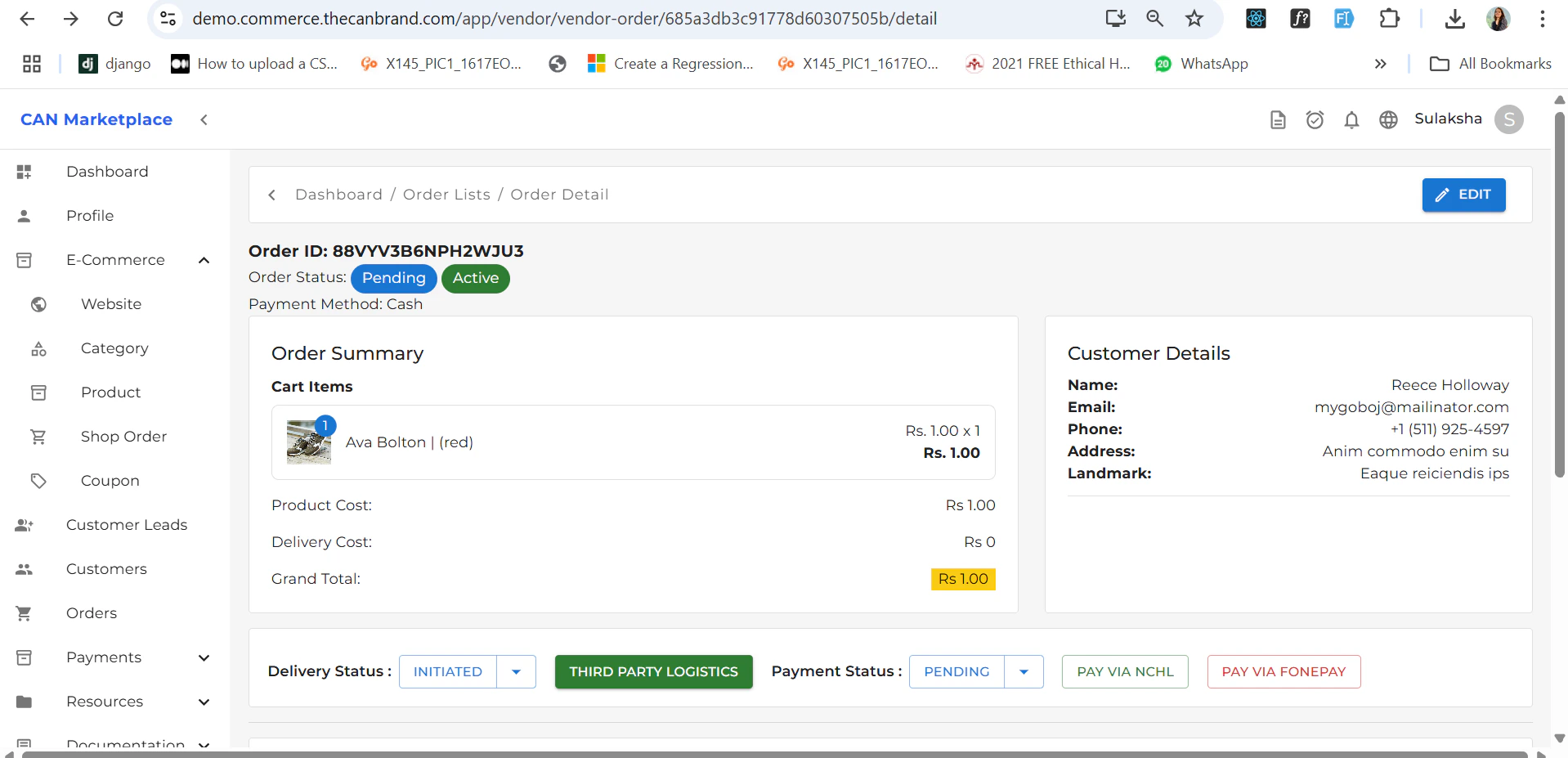
Clicking on an order will open its **Detail Screen**, which includes:
* **Order Summary**
* **Delivery Status**
* **Order Status**
* **Payment Status**
> You can make payments either **online** or by **cash**.
>
## Order Details
Clicking on an order will open its **Detail Screen**, which includes:
* **Order Summary**
* **Delivery Status**
* **Order Status**
* **Payment Status**
> You can make payments either **online** or by **cash**.
>  >
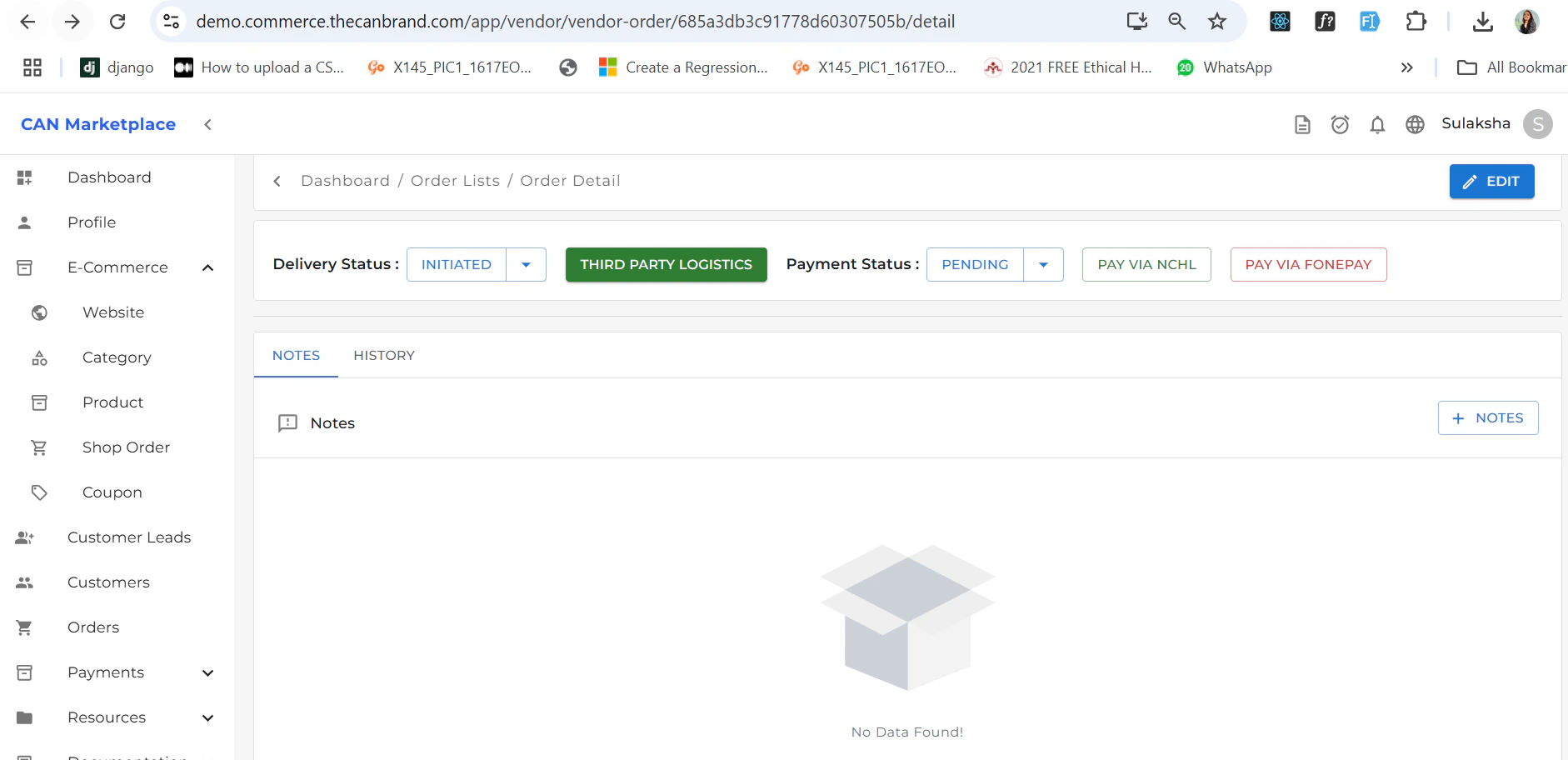
> You can also add notes and see the history.
>
> You can also add notes and see the history.
 ## Edit Order
To modify order details, click the **Edit** button located at the **top-right corner** of the detail screen. This allows you to update the available options for the selected order.
## Edit Order
To modify order details, click the **Edit** button located at the **top-right corner** of the detail screen. This allows you to update the available options for the selected order.