List Screen
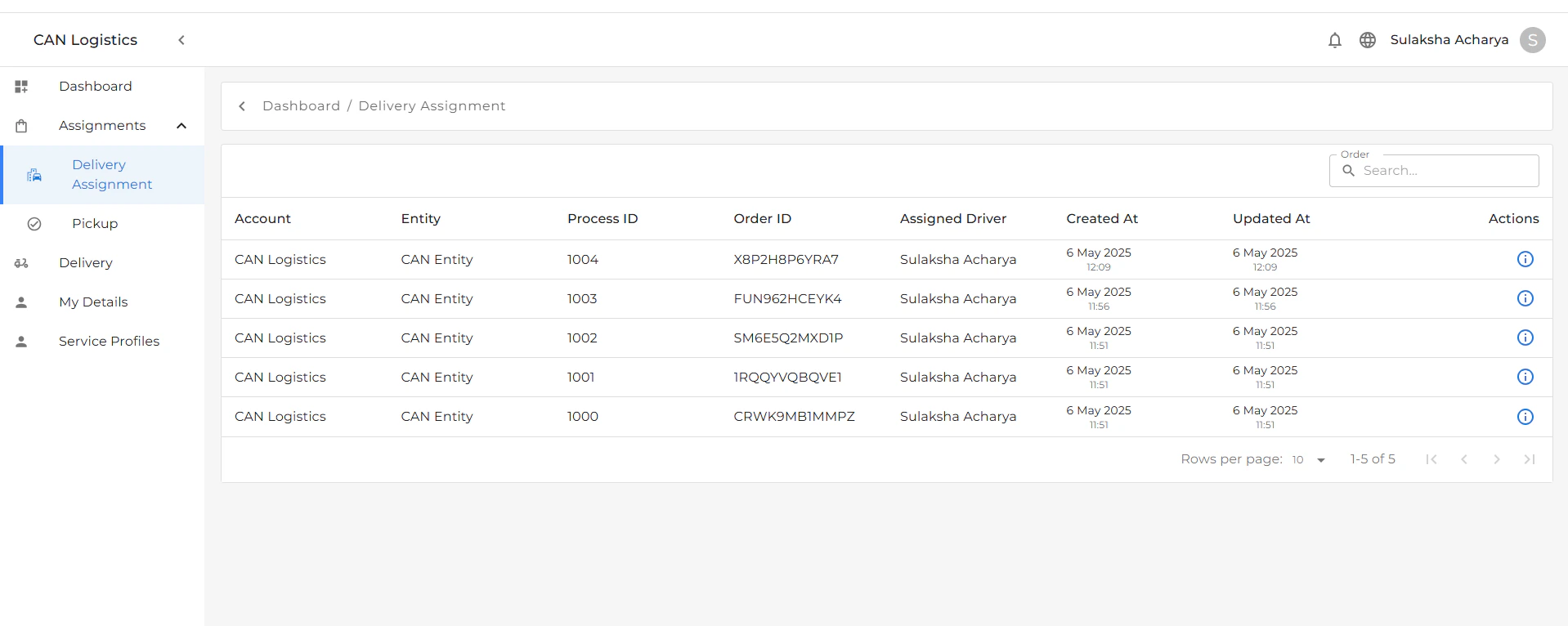
The Deliver Assignment list screen displays detailed information for each assignment:- Account: The account associated with the delivery.
- Entity: The managing entity or organization.
- Process: The delivery process stage.
- Order ID: Unique identifier for the delivery order.
- Assigned Driver: The driver assigned to the order.
- Created Date: Date and time the assignment was created.
- Updated Time: Last updated timestamp for the assignment.
Actions
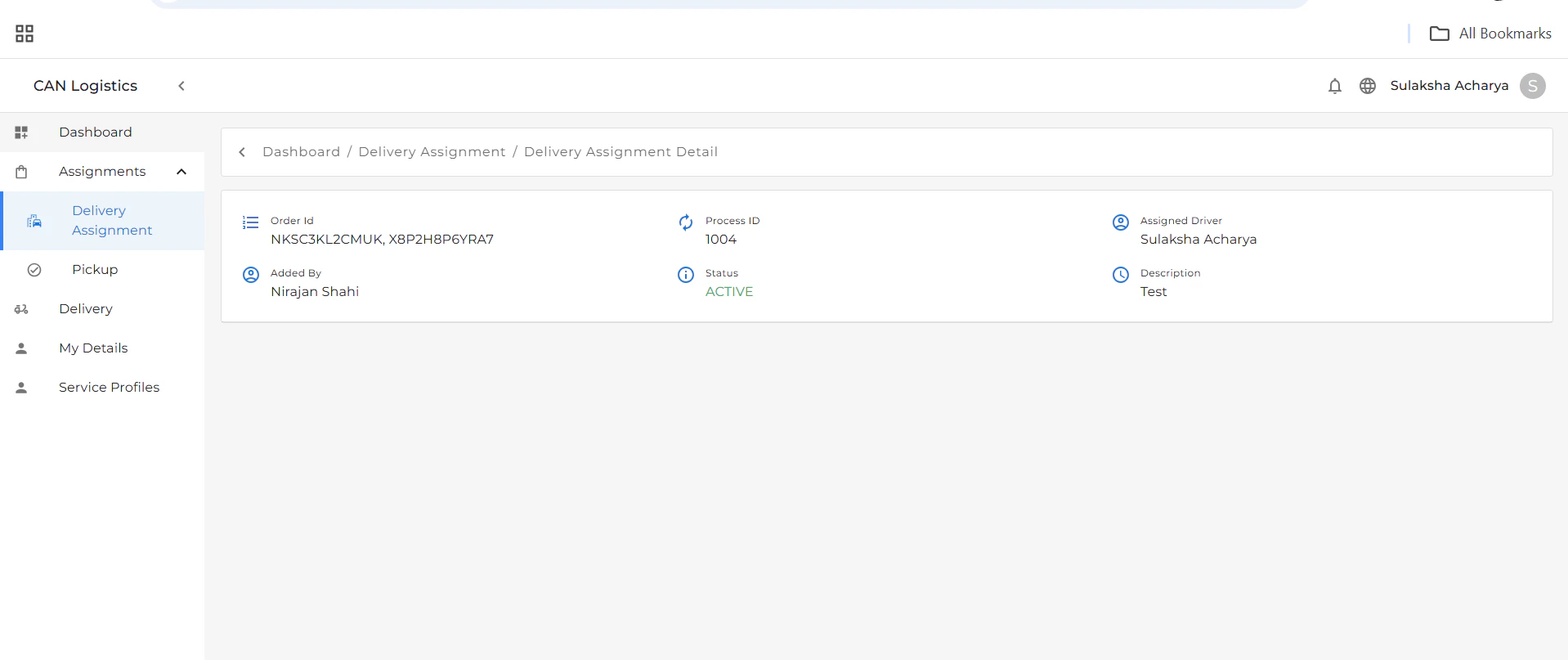
Each record includes an Actions button that lets you:- View assignment Details.
- Track delivery status and schedule.
- Order ID
- Assigned Driver
- Pickup and Delivery Schedule
- Process Id
- **Added By **
Workflow
- Load the delivery order.
- Open the Deliver Assignment module.
- Select a driver from the list.
- Assign the driver to the loaded order.
- Track the progress via the list and detail screens.