Locations
The Locations module manages all the geographic and operational aspects of your organization’s branches. It includes the following main features:- Branches
- Branch Assignment
- Branches Cluster
- Service
Branches
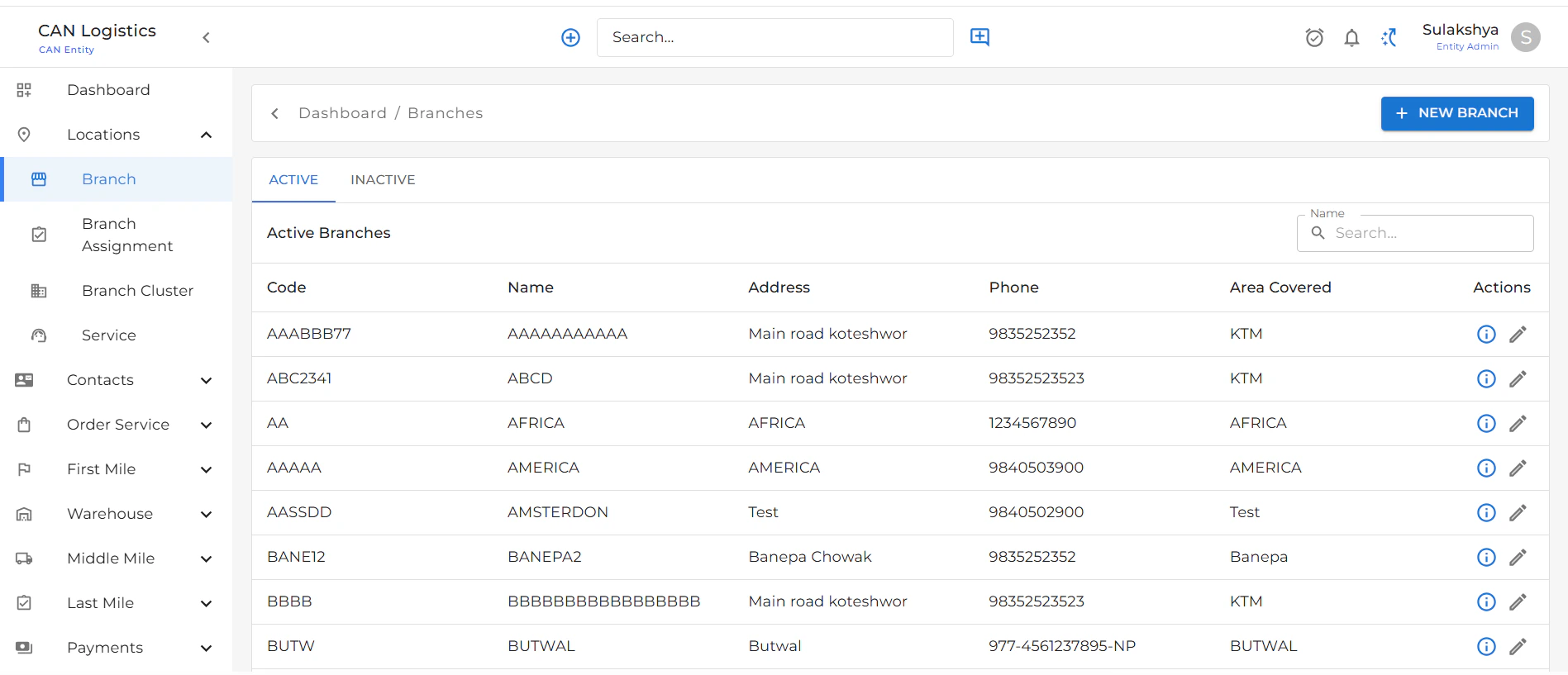
The Branches screen provides a list of all registered branches in the system.Branch List View
Each branch row displays:- Code: Unique identifier for the branch
- Name: Name of the branch
- Address: Full address of the branch
- Phone: Contact number
- Area Covered: Description of areas the branch serves
- Actions: Buttons to:
- Navigate to Edit Branch
- Navigate to Branch Details
Branch Detail View
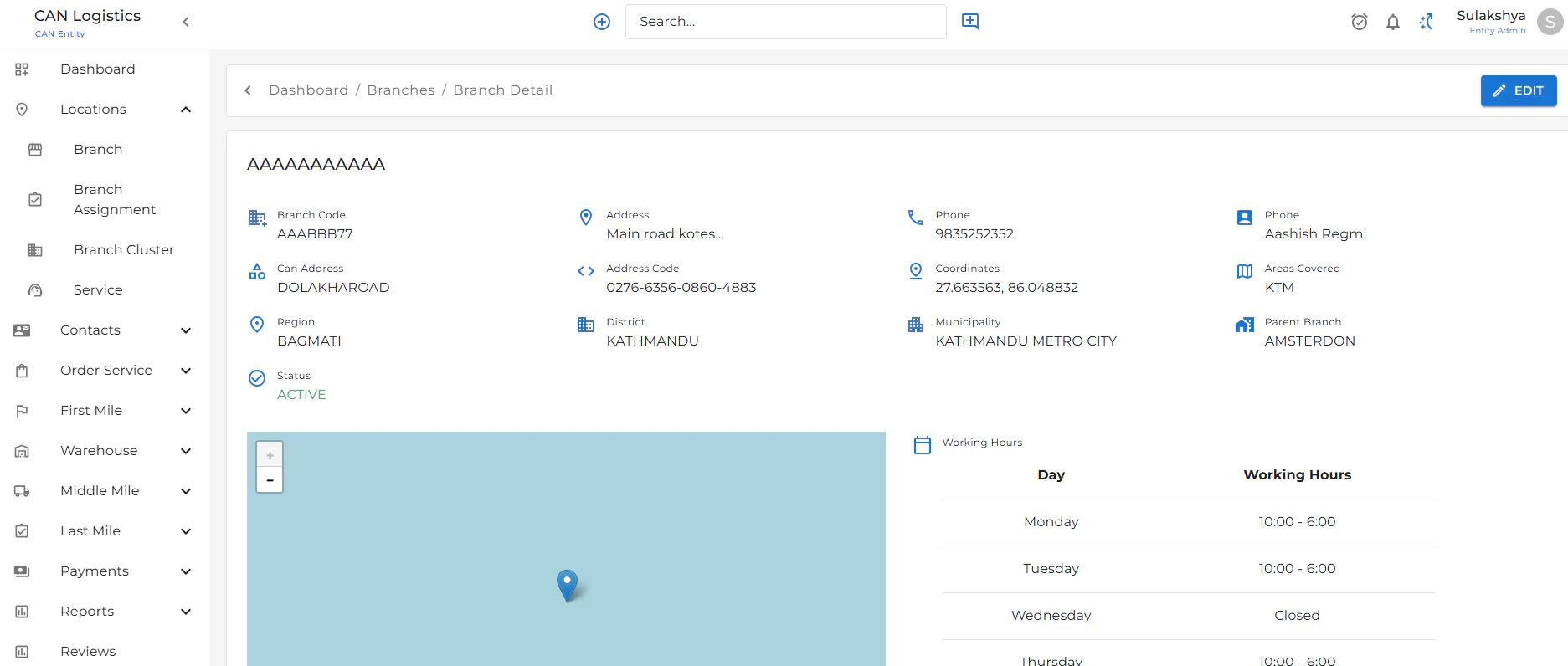
Clicking on a branch leads to a detailed view that includes:- Full branch information
- Working Hours section displaying operating days and times
- Tabs:
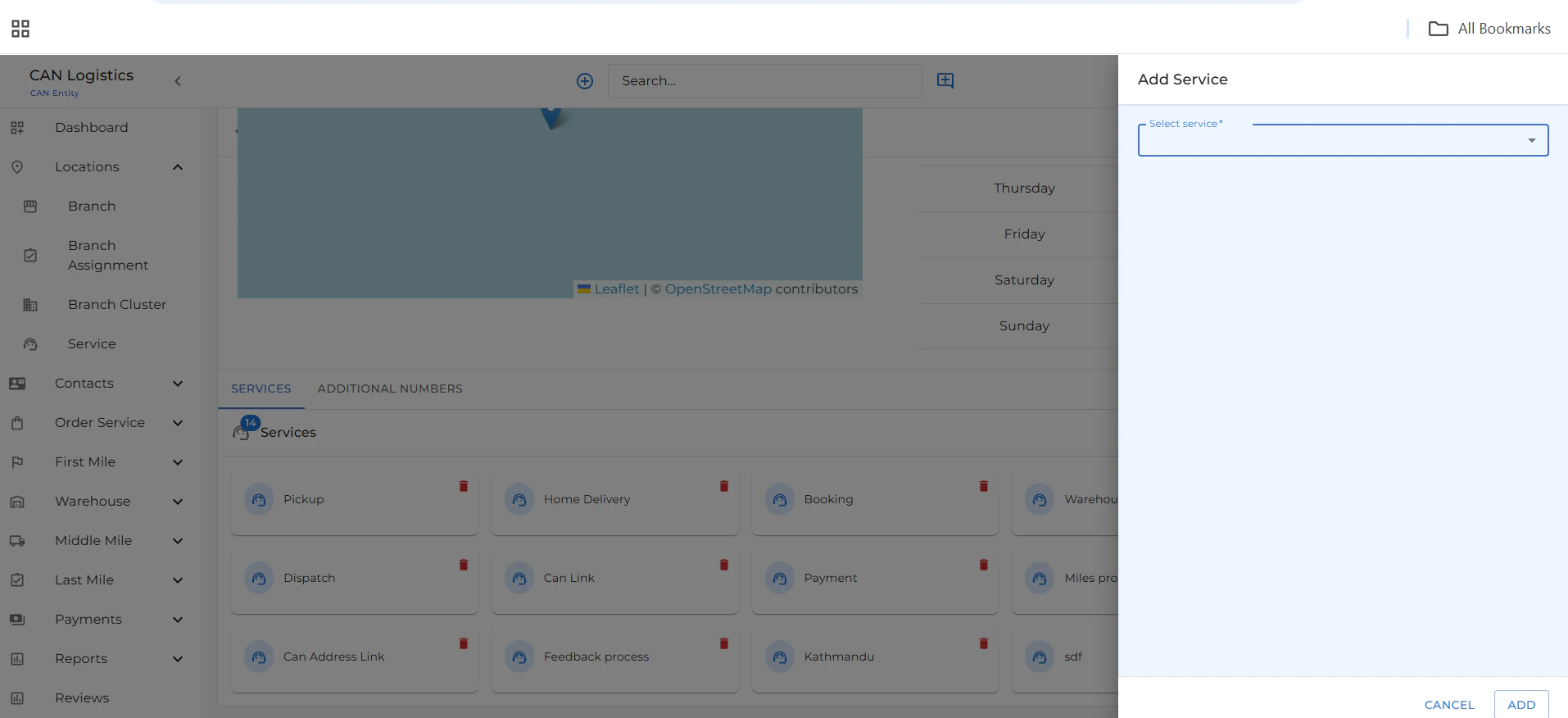
- Services: Assign or update the services offered at this branch
- Admissions Number: Manage admission/contact numbers (add, edit, activate, or deactivate)
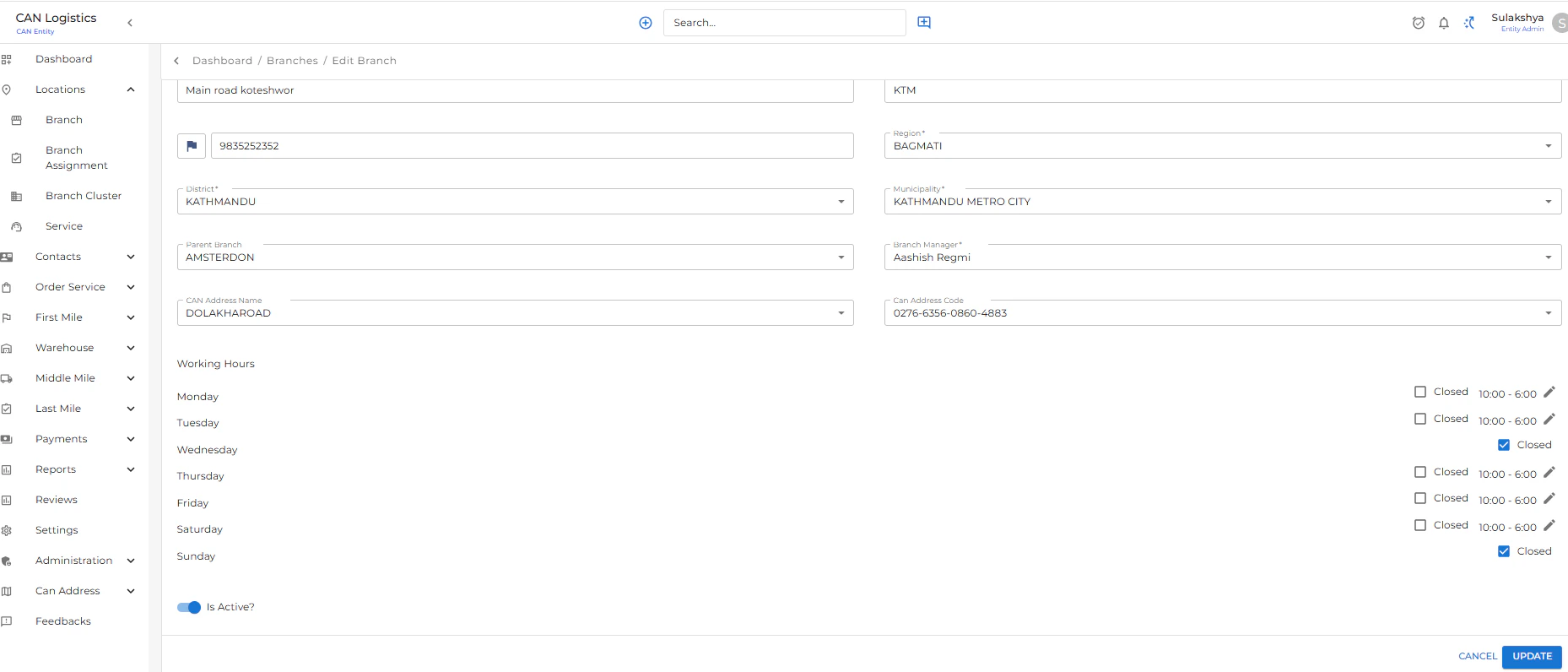
Edit Branch
The Edit Branch screen allows you to update any branch details. Editable sections include:- Name, address, phone, and area covered
- Working Hours (adjust opening and closing times)
- Services offered
- Admission/contact numbers
Add New Branch
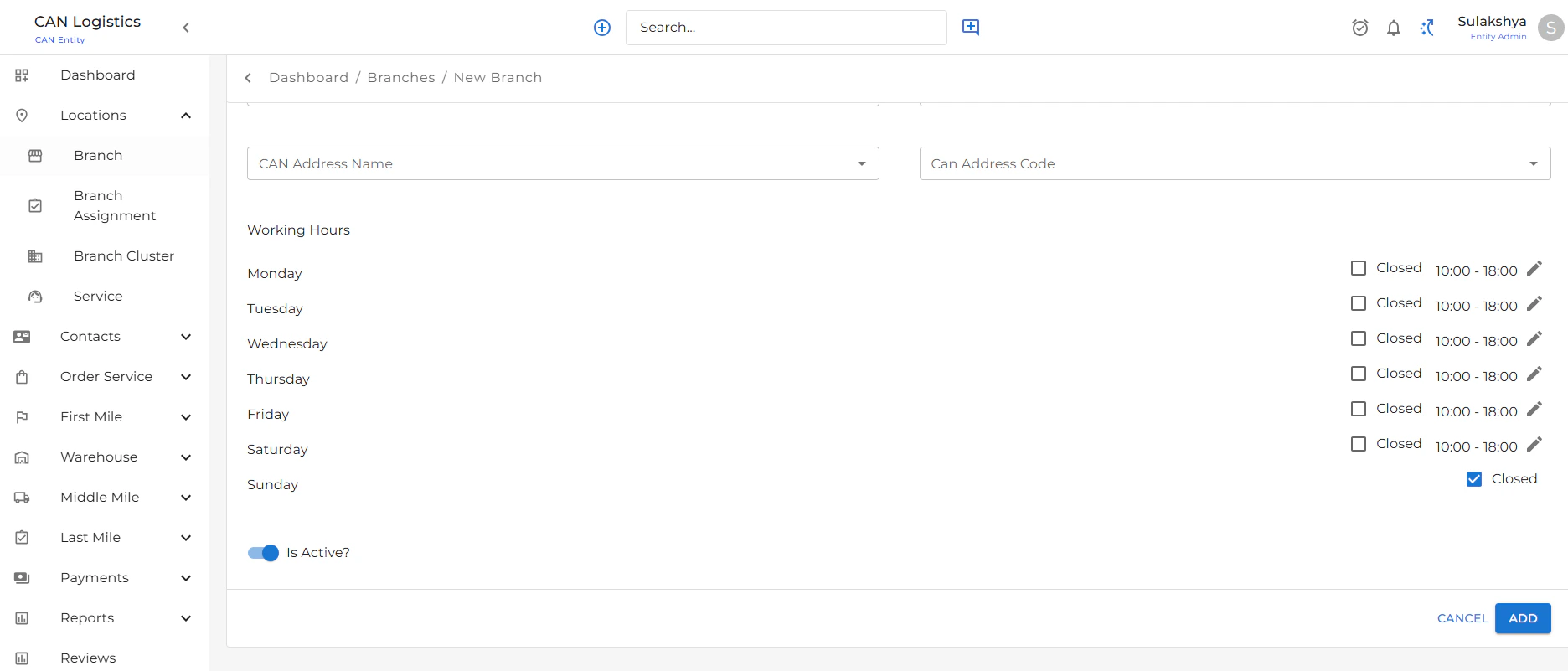
The New Branch screen allows users to create a brand-new branch.Required Information:
- Branch Code
- Branch Name
- Address
- Phone
- Area Covered
Working Hours Section
Scroll down to the Working Hours section to:- Define operating days (e.g., Mon–Sat)
- Set custom open and close times per day
- Assign available services
- Add one or multiple admission numbers with status control
Technology & UX Notes
- Built using React and Material UI
- Data managed via RTK Query / Axios
- Routes and screens use role-based access where applicable
Services
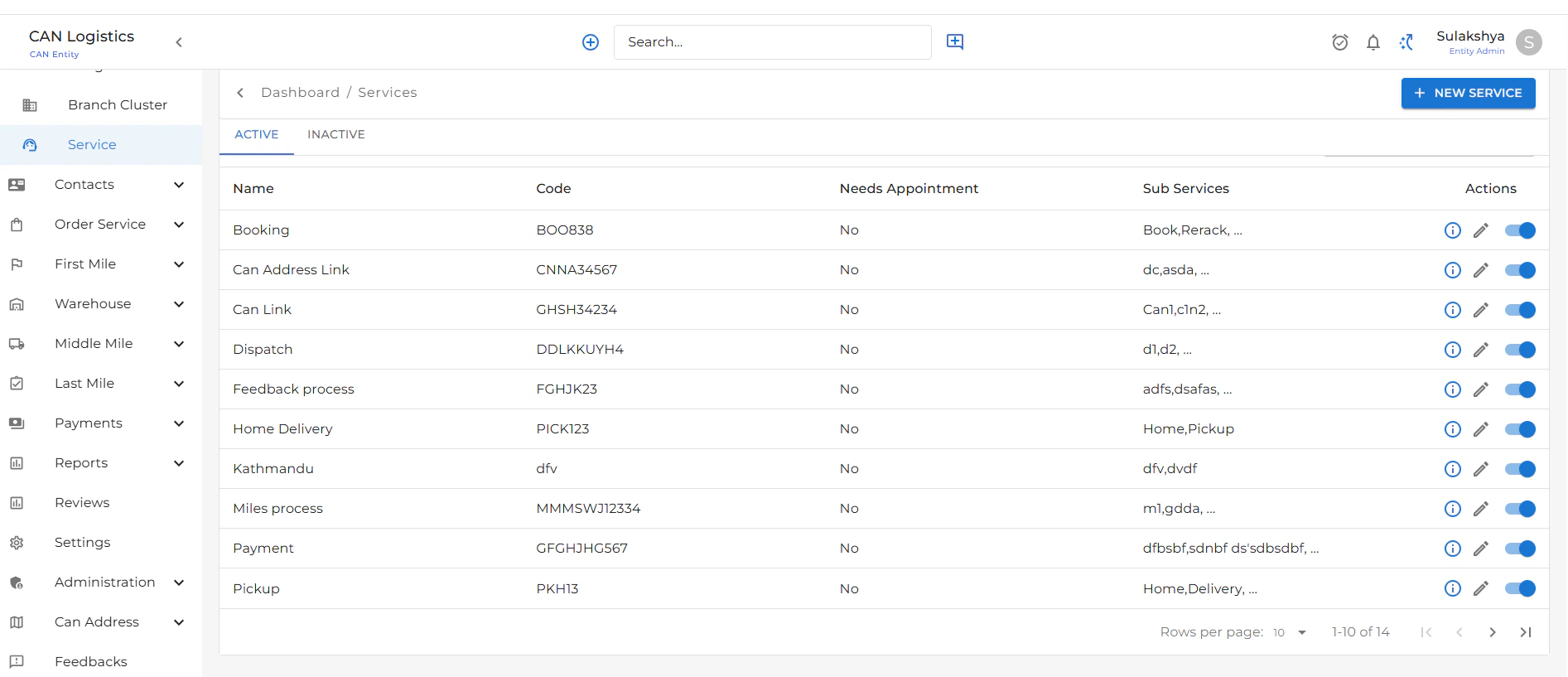
The Services feature allows you to manage the different services offered at each branch.Service List View
- Displays a table of all existing services.
- Each row includes:
- Service Name
- Service Description
- Status Toggle: Easily switch a service between Active and Inactive using a toggle button.
- Actions:
- Edit: Update existing service details.
Add Service
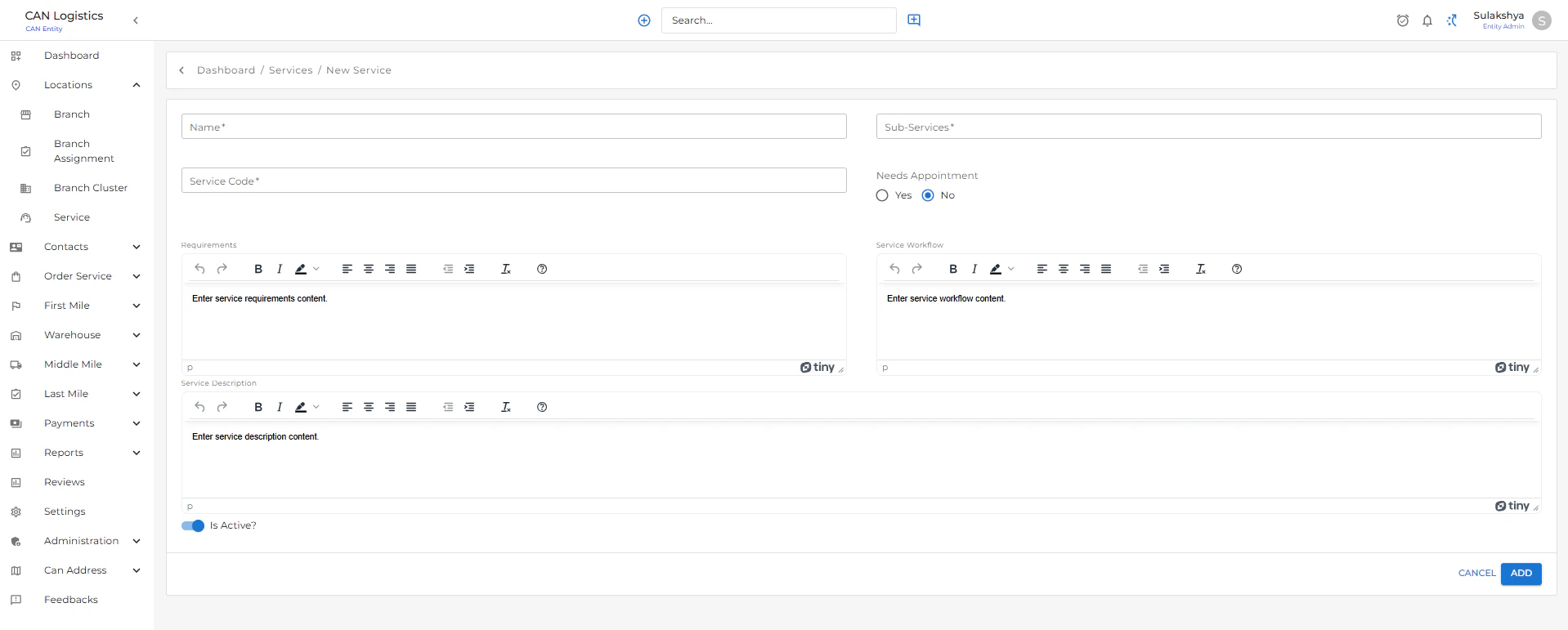
- Use the Add Service form to create a new service.
- Required fields:
- Service Name
- Description
- After submission, the service will be listed and can be toggled active or inactive at any time.
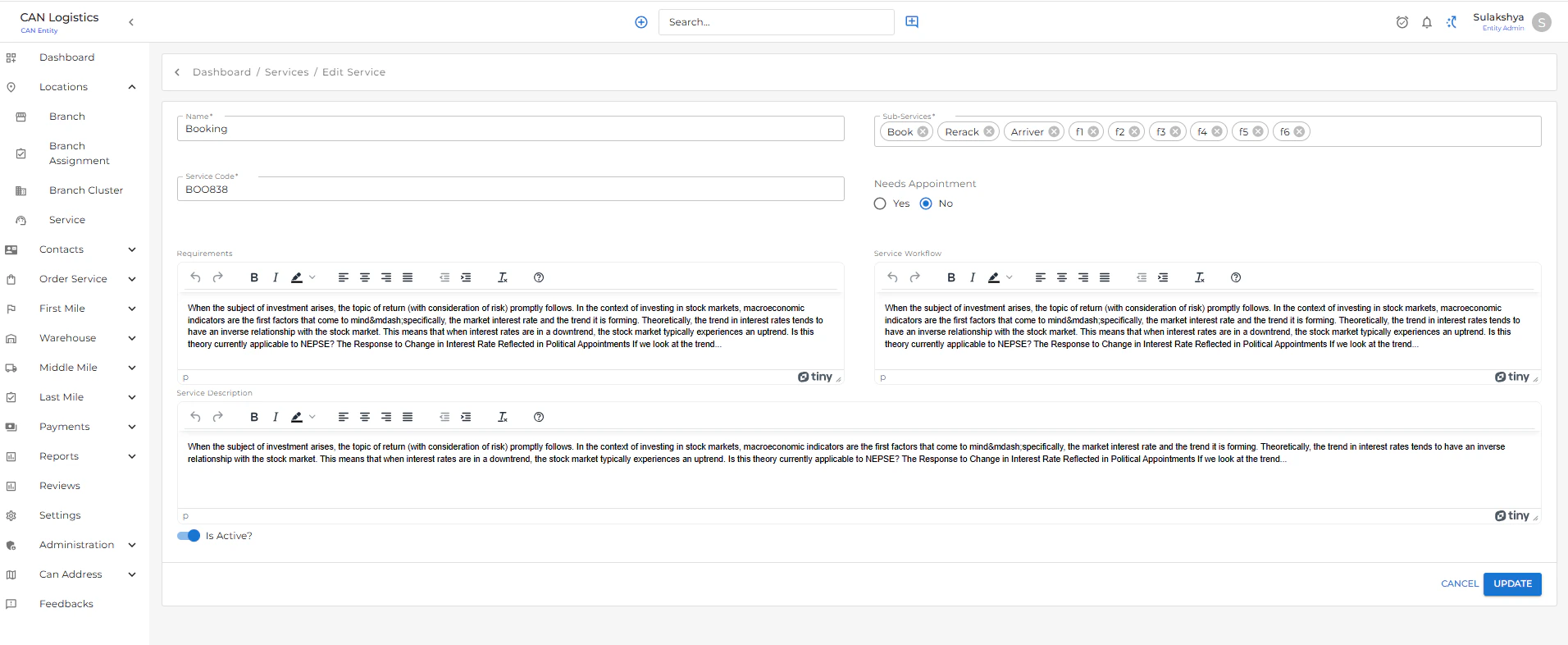
Edit Service
- Select a service from the list and click Edit to:
- Update the name or description
- Change its active status
Features
- Real-time toggle for enabling/disabling services
- Clean and intuitive interface for managing service offerings
- Role-based access (if applied) to ensure only authorized users can create/edit
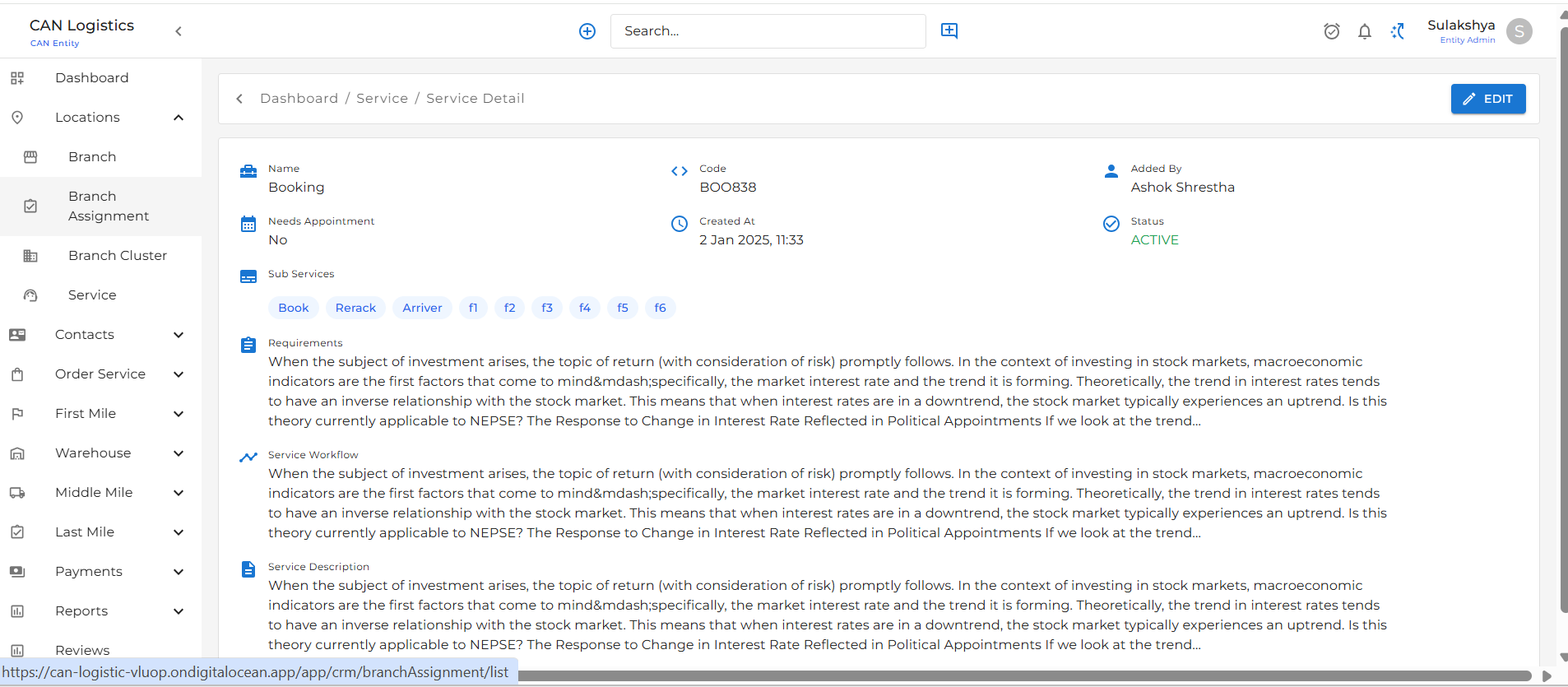
Service Detail
Service Detail shows the detail of the service you added.