Order Creation Flow
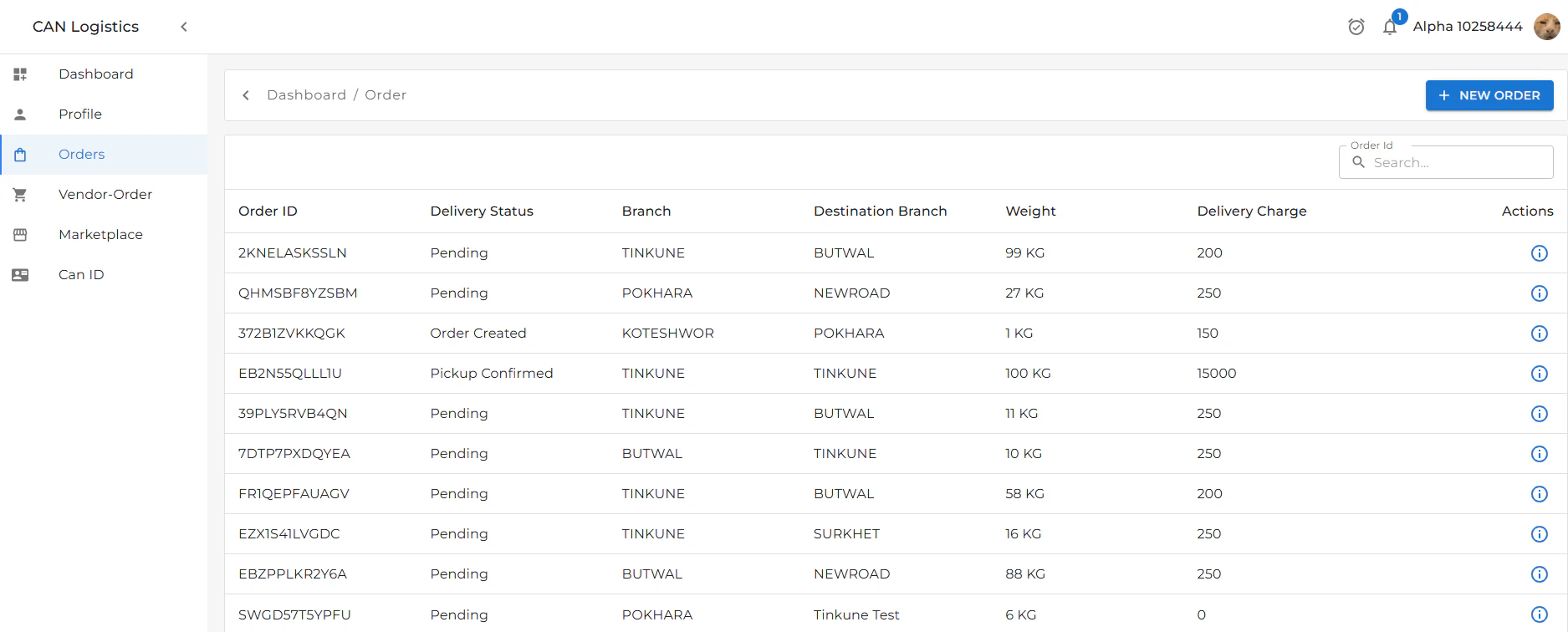
Order List
- Displays all orders that:
- You have created, or
- Have been created for you by the admin.
- Allows easy tracking and management of existing orders.
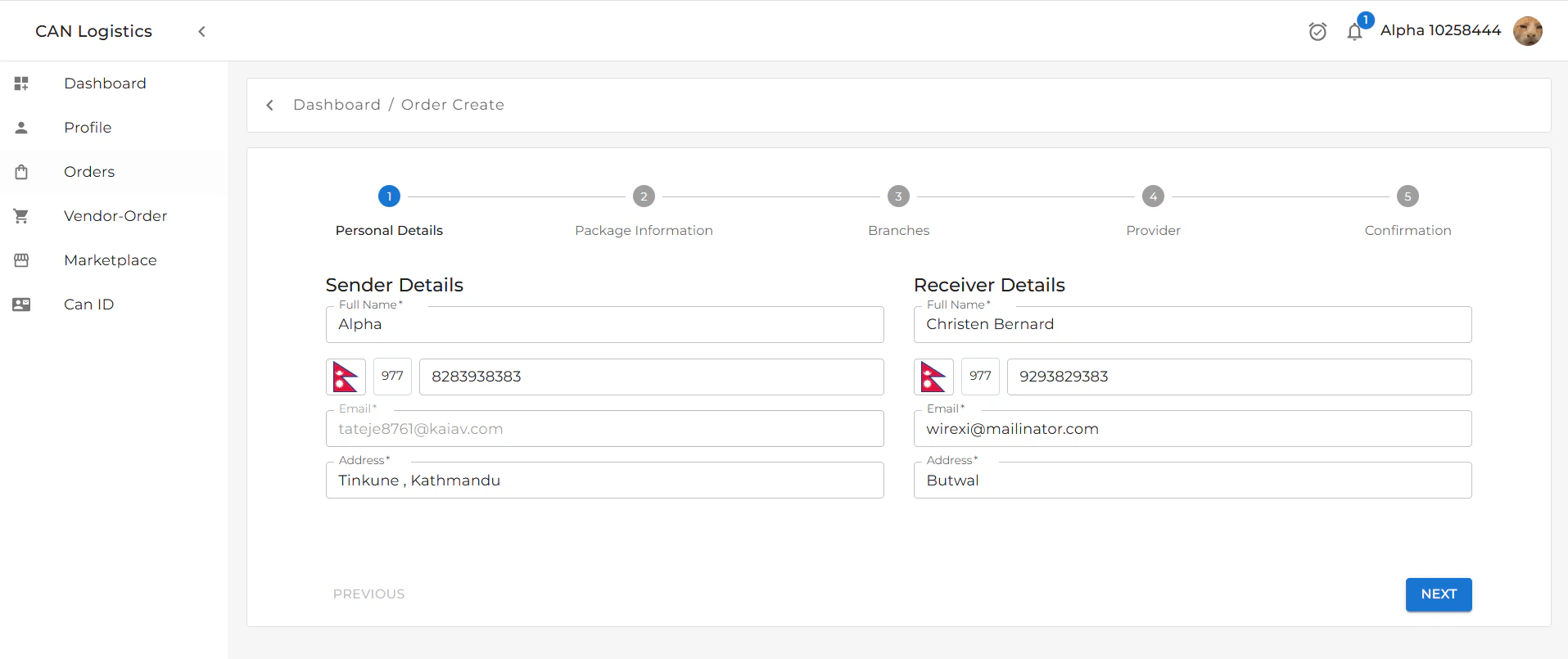
1. Sender & Receiver Details
- Fill in personal details for both the sender and receiver.
- Includes:
- Name
- Phone
- Address
- Click Next to proceed.
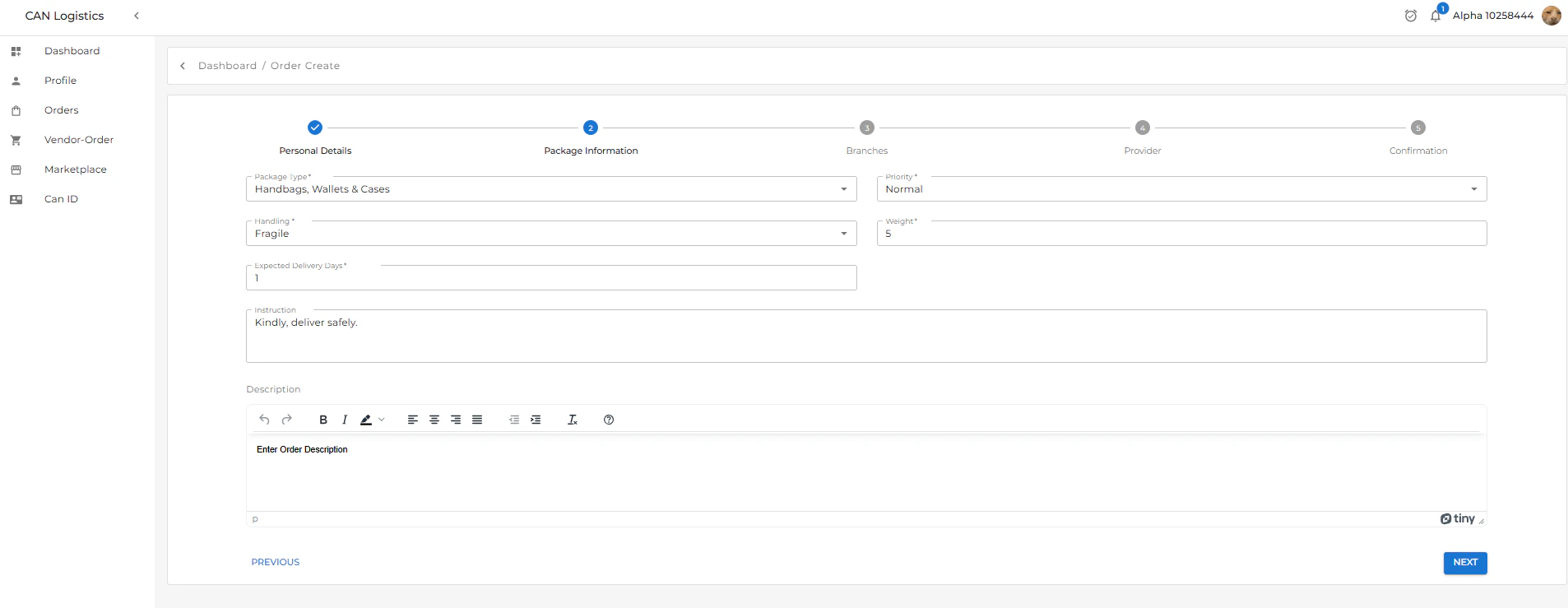
2. Package Details
- Enter all relevant package information:
- Type
- Weight
- Dimensions
- Contents
- Click Next to proceed.
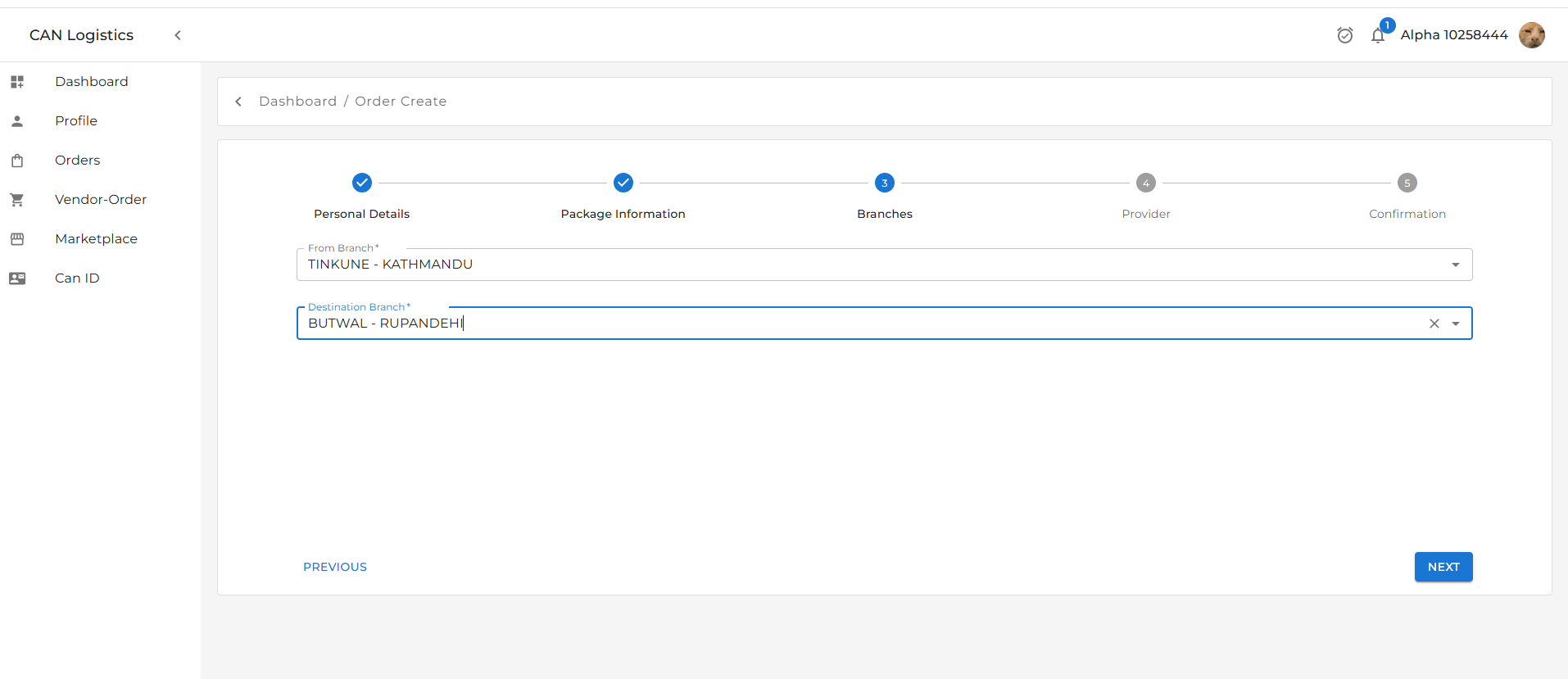
3. Branch Selection
- Choose the sending branch (from) and the destination branch.
- These define the route of the order.
- Click Next to continue.
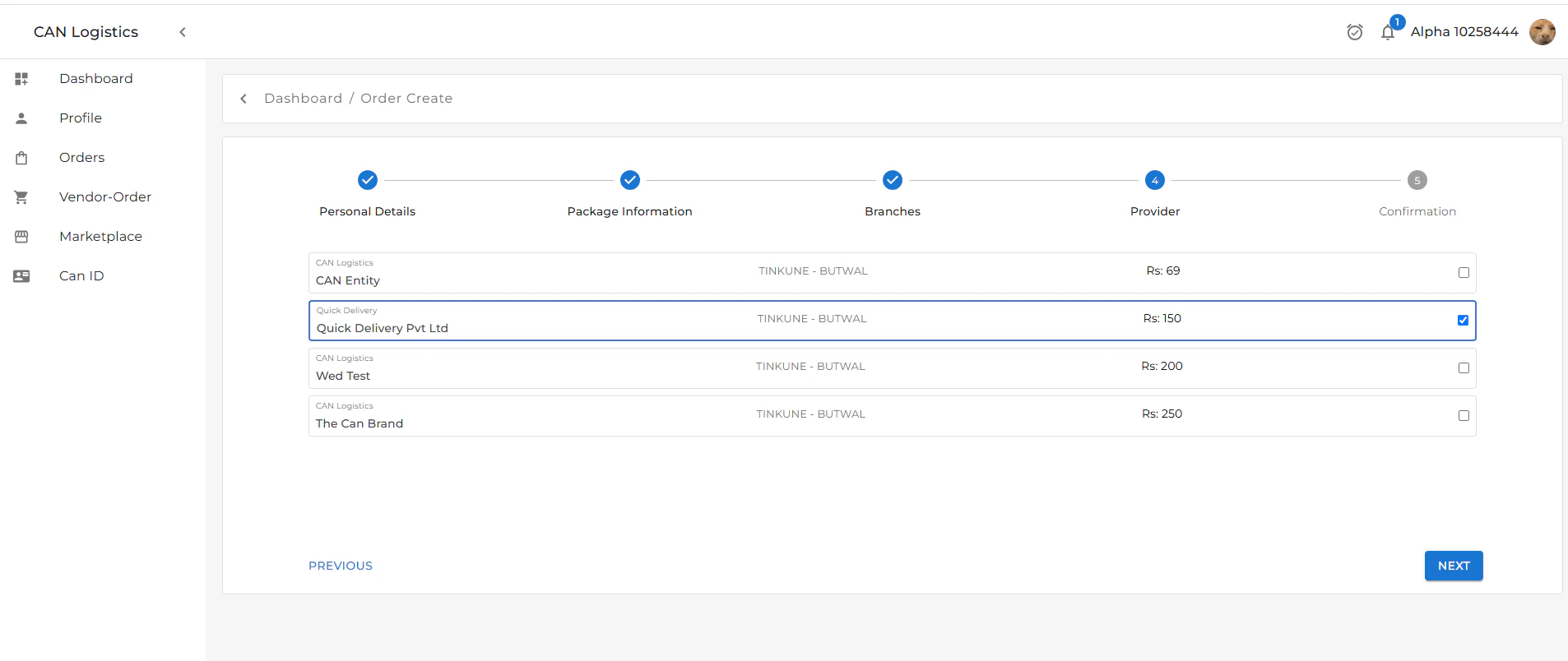
4. Provider Selection
- Select the logistics provider.
- This could be based on:
- Price
- Delivery time
- Availability
- Click Next to proceed.
5. Order Confirmation
- Review all entered information:
- Sender & Receiver Info
- Package Details
- Branch Route
- Provider Info
- Ensure all details are correct.
- Click Submit to finalize.

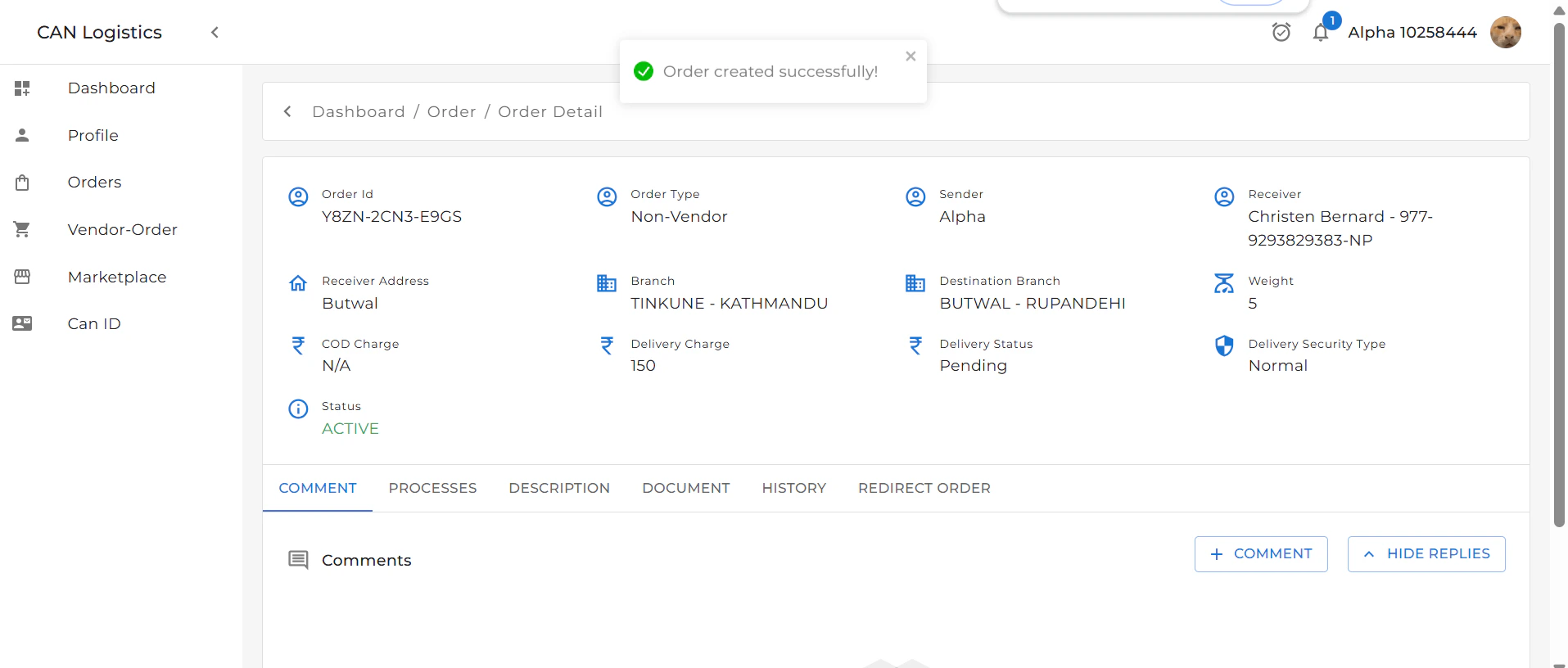
After Order Creation – Detail Sections
Once the order is submitted, you can view and interact with the following sections:1. Comment Section
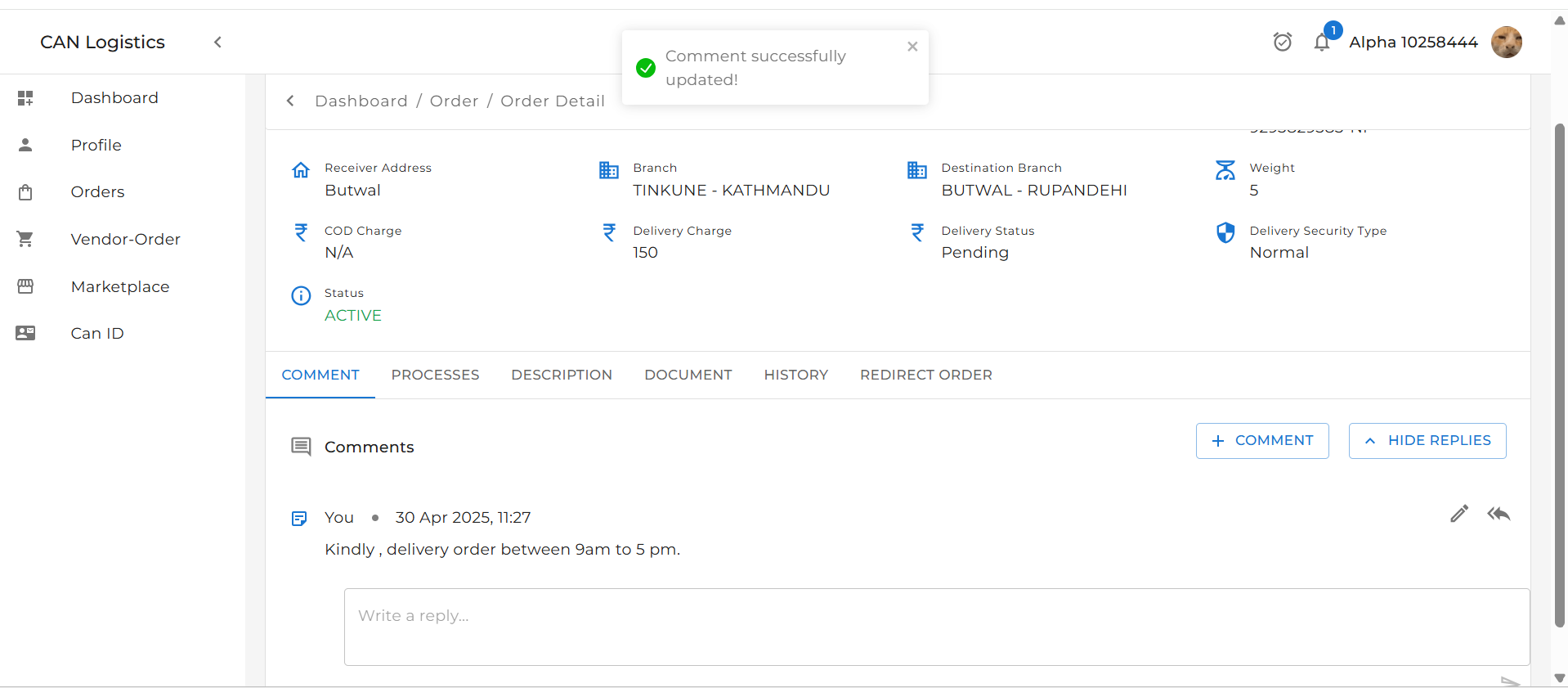
- Add a Comment: Submit internal notes or updates about the order.
- Edit Comment: Modify previously added comments by clicking the Edit button.
- Reply to Comment: Use the Reply button to respond to a comment.
- Hide Replies: Collapse all replies under a comment using the Hide Replies option.